In the design you want to work on together, click the Share button.
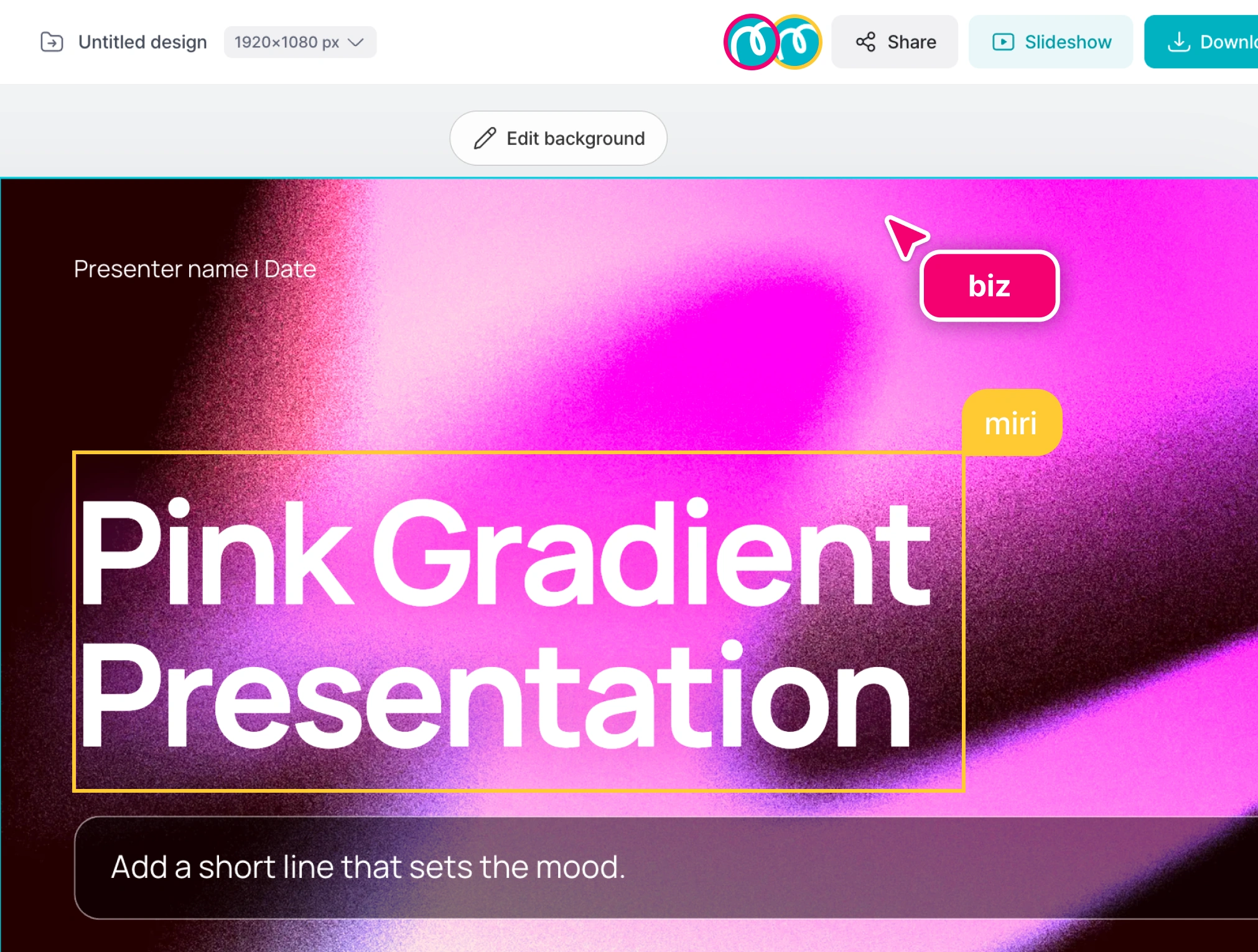
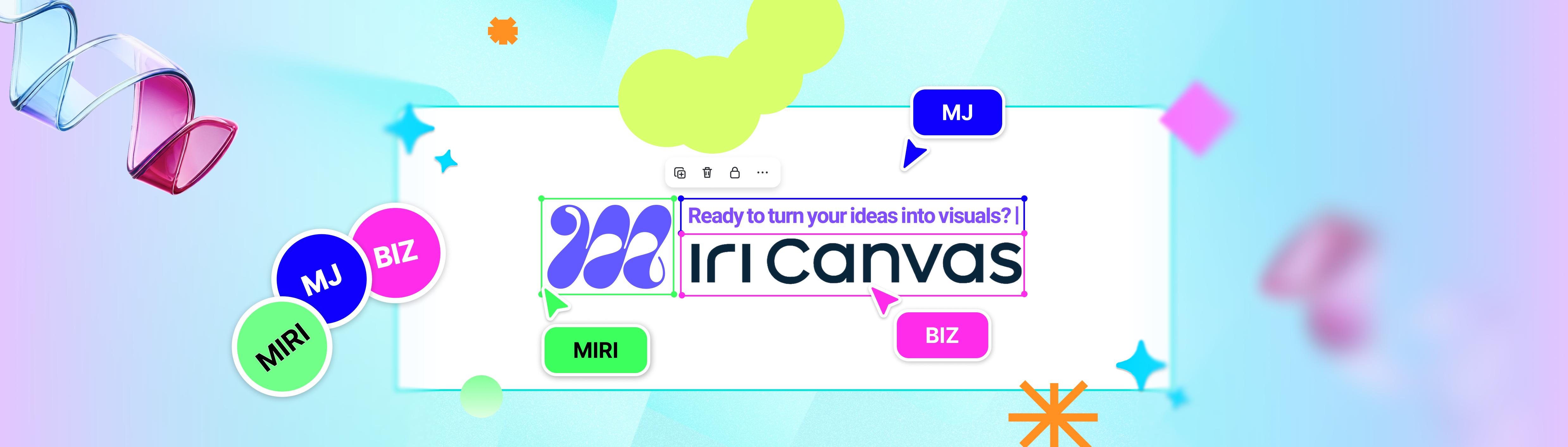
With collaborative editing and comments, edit designs and presentations with your teammates in real time and leave feedback right on the design where changes are needed. Named cursors show who's working where.


Edit one design together, and changes show up on everyone's screen right away.

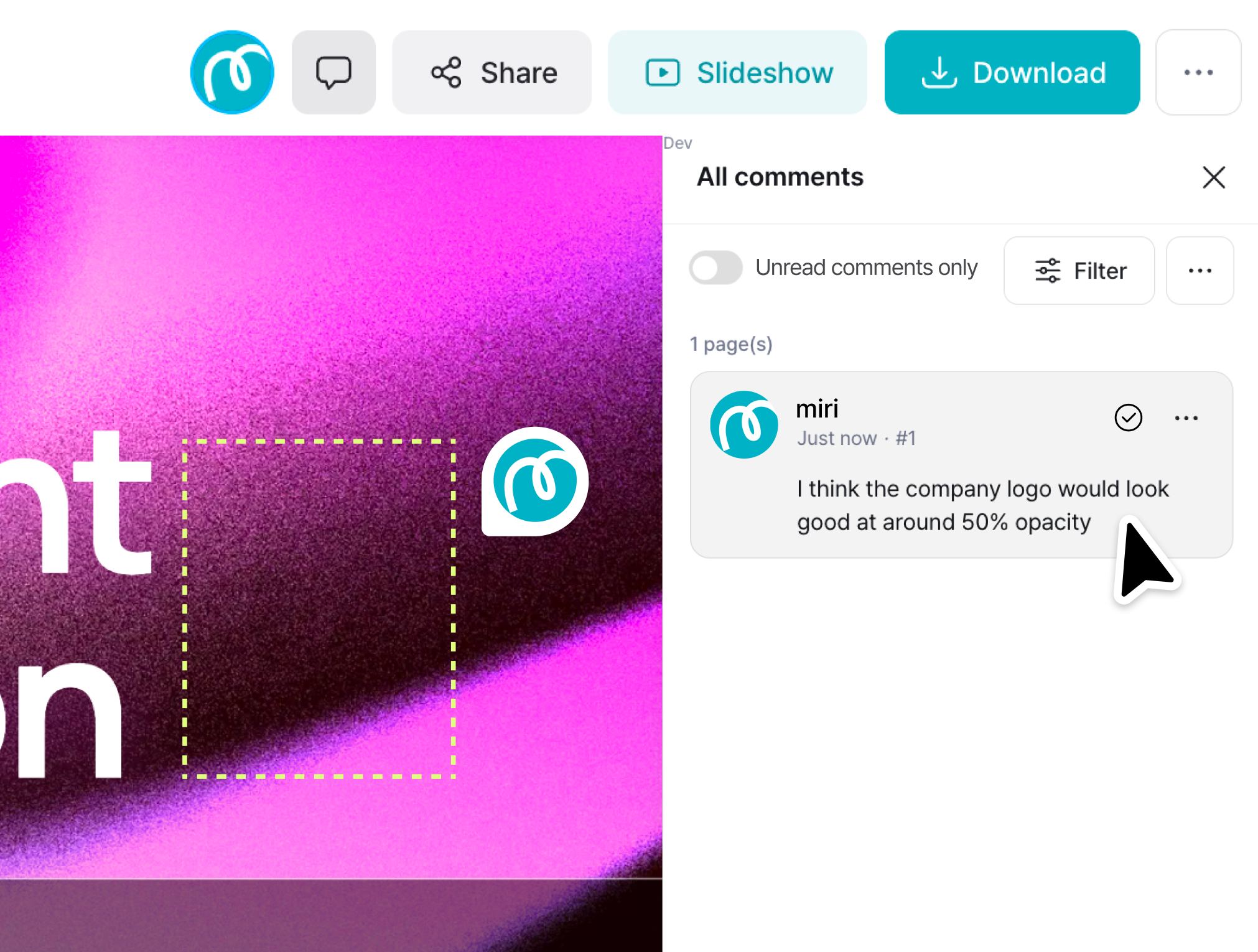
Select an area on the page to leave a comment, then use replies and Resolve to see edit requests through.

Share with separate view, comment, and edit permissions so reviewers can leave feedback without changing the design.

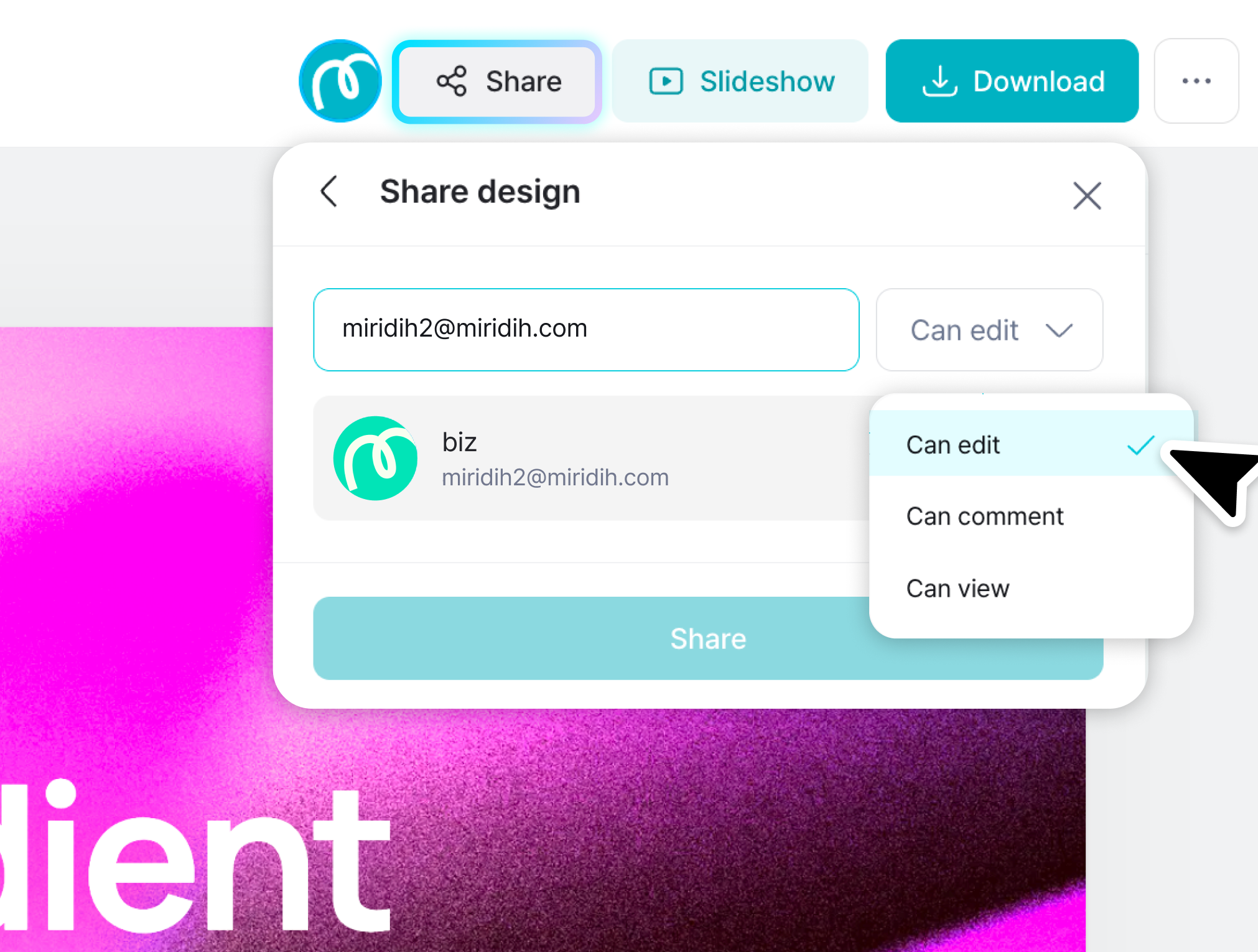
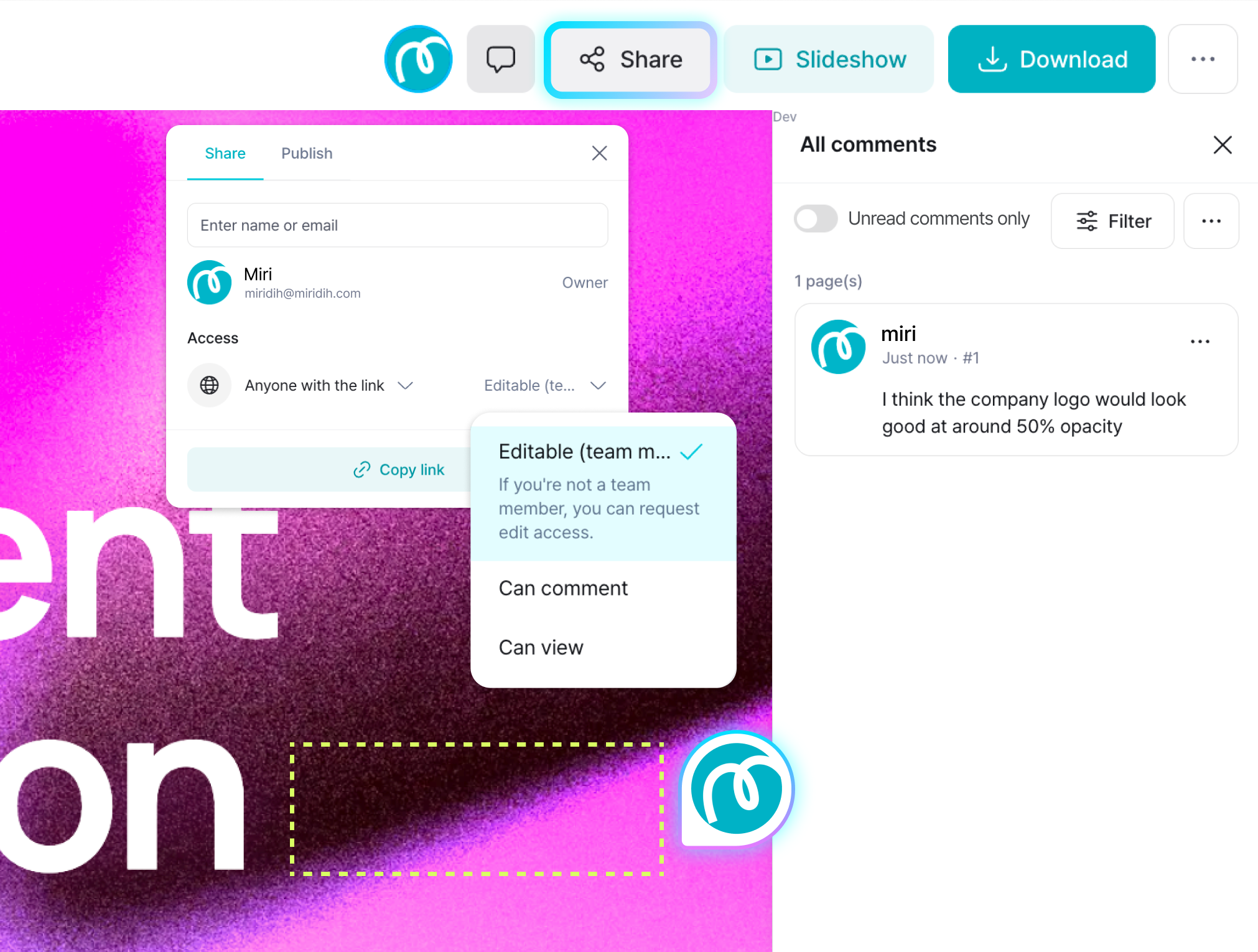
In the design you want to work on together, click the Share button.

Add teammates by email or name, and choose Can edit, Can comment, or Can view.
When teammates open the design, profiles at the top and named cursors show who's working where as you edit together.
Switch to Comment mode, drag over the area you want to leave a comment on, and resolve comments once changes are made.
Collaborative editing is a way of working where several people open one document, presentation, or design at the same time and edit it together in real time. Design comments are a way to leave feedback on a specific spot in your work and exchange edit requests.
The collaborative editing and comments feature on MiriCanvas lets members of the same workspace edit one design at the same time, leave feedback on any area in Comment mode, and keep it organized with replies and resolving. You can finish teamwork from creation to review and revisions, all inside one design.

Build a presentation at the same time as your teammates by splitting it up by page, while your manager points out what to fix in Comment mode.

Share a product detail page or social media image draft, and reviewers leave feedback on each area. Resolve comments once you've applied them.

Invite students to one design to build group projects together, and give feedback in comments.

Edit a presentation at the same time as your group members, and leave comments on what each of you should fix.
When members of the same workspace open a design, changes show up on everyone's screen right away. Profiles of people who have the design open appear at the top, and you can click one to see their name and permission.
Other people's cursors and selected elements appear in a different color with each person's name.


In Comment mode, drag over an area of the page to leave a comment, and adjust the area's position and size. Exchange feedback with replies on each comment. When you resolve a comment after making changes, it's hidden from the design, and you can mark it unresolved again if needed.
All comments are collected in the comments panel, where you can filter by current page, your comments, or unread comments. Comments from others appear right away without refreshing, and you also get email notifications for new comments.
From the Share button, add people, groups, or your whole team by email or name, and give them Can view, Can comment, or Can edit. When you change access for link sharing, the permission you choose applies to everyone who opens the link. Give teammates Can edit and reviewers Can comment, so reviewers can leave feedback without changing the design.
Use Edit mode, Comment mode, or View mode depending on your permission. People with Can view or Can comment can request higher permission and get approval from the person who manages the design.

Edit together, leave feedback on the design, and resolve comments once they're applied.