Share design and Publish: send it with one link and publish it as a web page

Share design and Publish lets you send report drafts and event pages with a single link. Give each person view, comment, or edit access, and publish pages that open like a website so anyone can see them without signing in.

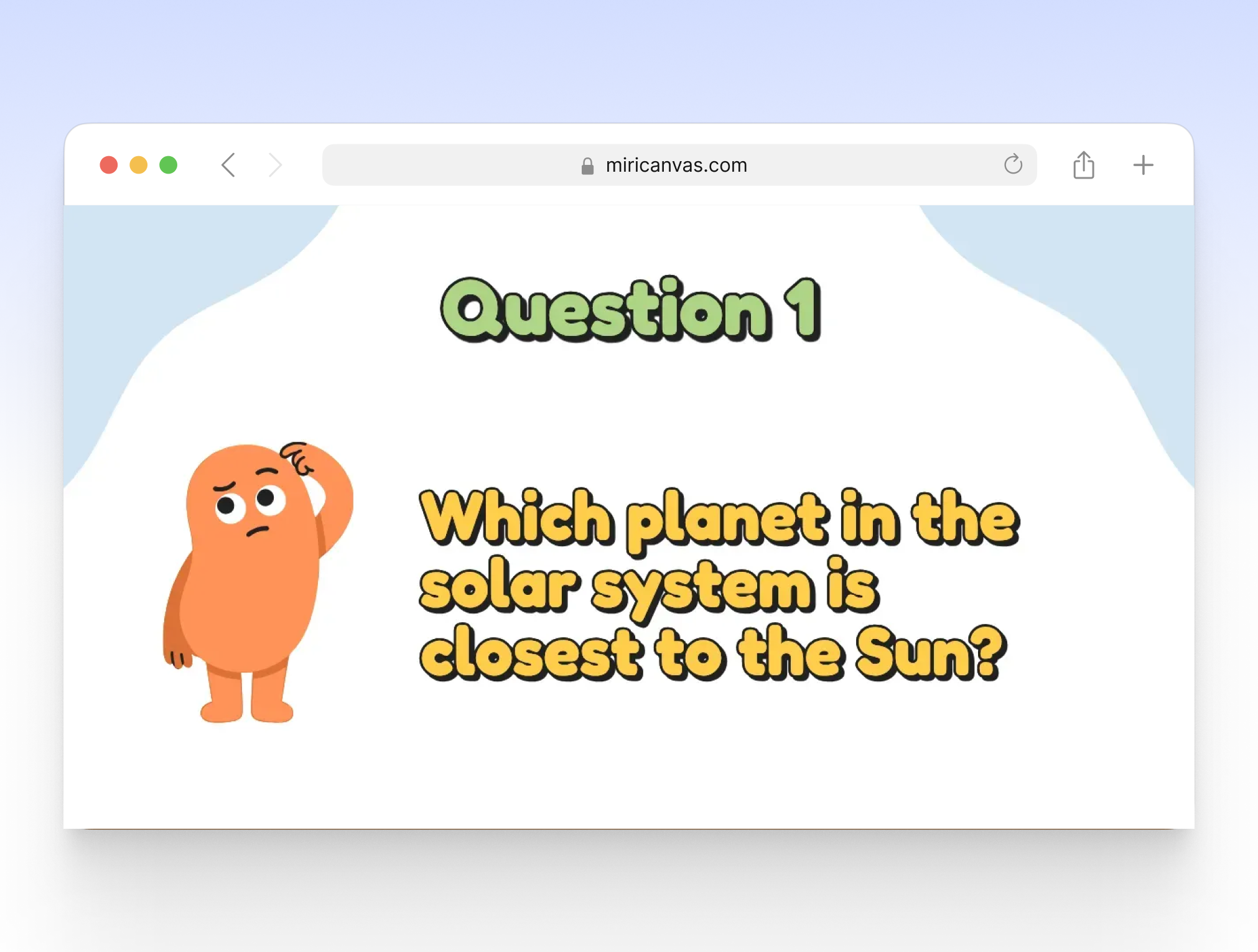
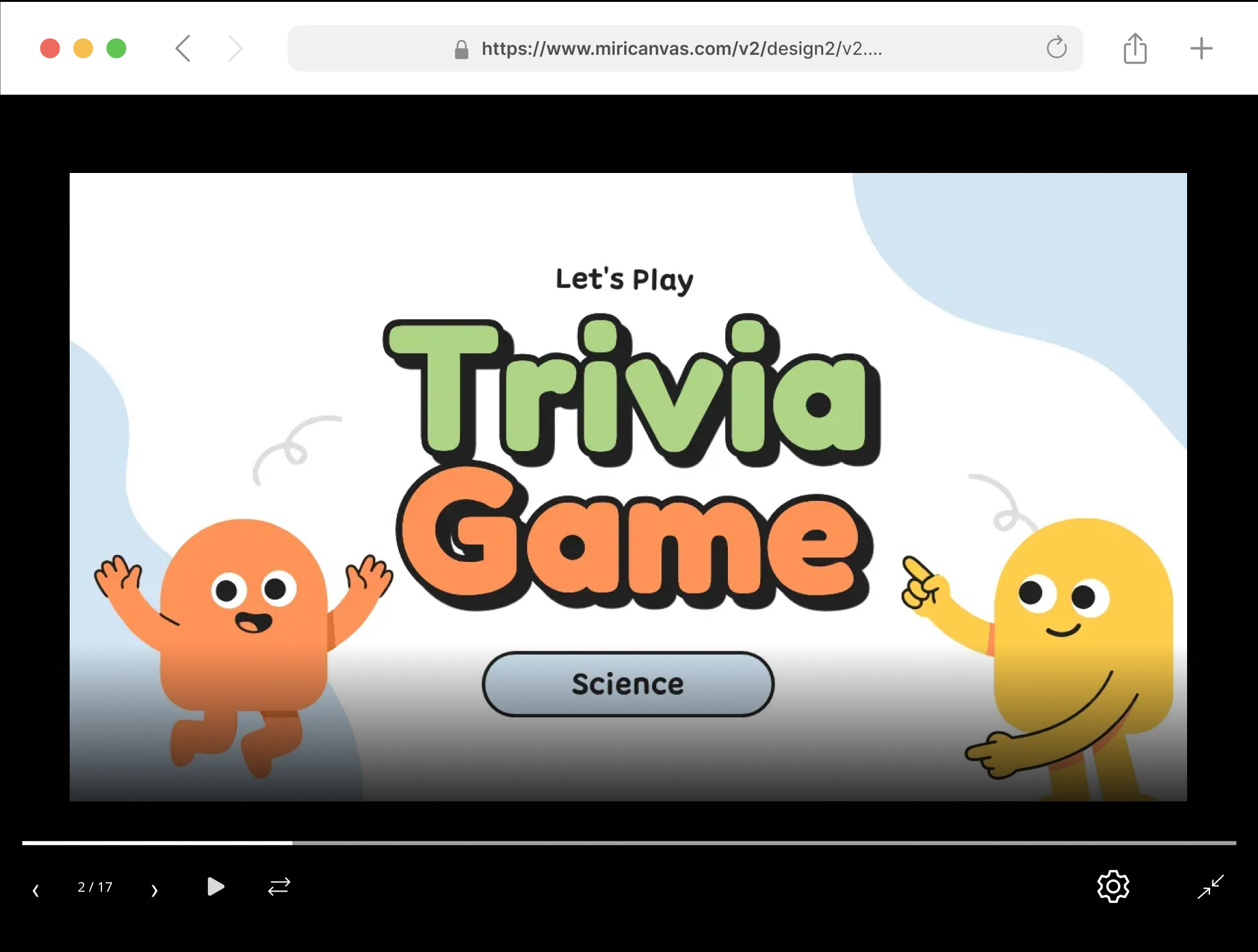
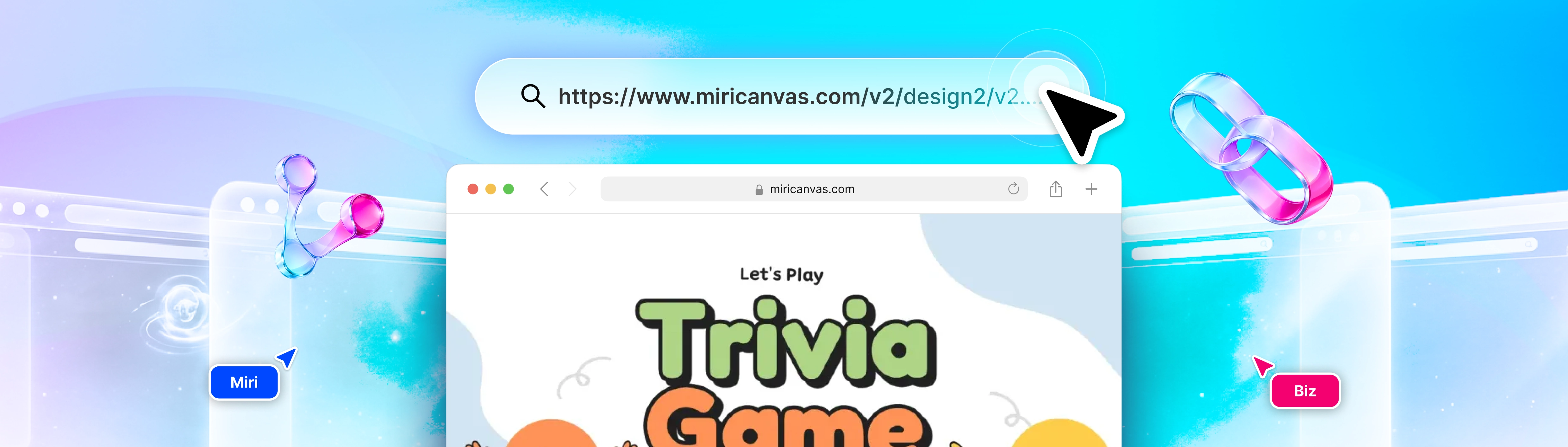
Share design and Publish example: opening a MiriCanvas link shows a Trivia Game design as a web page in the browser

Share design and Publish features on MiriCanvas

Share with one link, no download needed

Just send a link, and people can open your design right away without an account.

Set access for each person and work together

Choose view, comment, or edit access for each person, and remove access or make the design private when you no longer need it.

Show your edits right away

When you edit the original design, the changes also show up on the published link and on designs embedded in websites.

Pick a format and publish it like a web page

Choose a horizontal slide, vertical scroll, or quiz format that fits your design, and publish it like a web page.

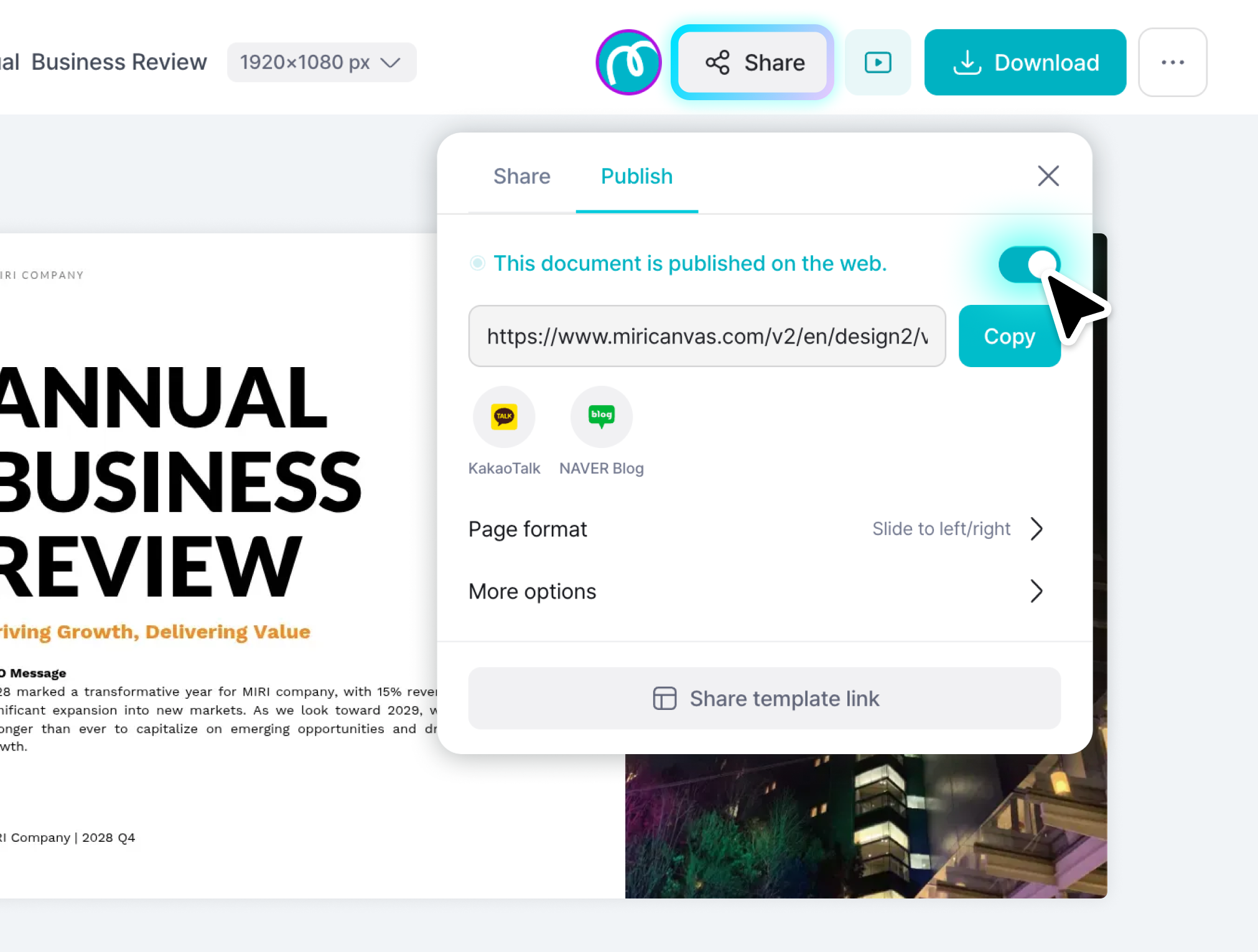
Publish tab in the Share panel with the toggle on, showing This document is published on the web and a link to copy

How to use Share design and Publish

1

Choose a design

Open the design you want to share or publish.

2

Open the share window

Click Share in the top-right corner of the editor.

3

Add people and set access

In the Share tab, enter an email or name to add people, groups, or teams. Then choose Can view, Can comment, or Can edit.

4

Make your design public in the Publish tab

To let anyone with the link see it, turn on Make design public in the Publish tab.

5

Choose a page format and options

Choose a page format: slide, scroll, quiz, or personality test. In More options, you can set whether to allow copying the original, allow likes and comments, show the Share button, and View as slideshow. You can also add a password.

6

Send the link

Copy the link and send it. It opens as a web page in a new window.

What is Share design and Publish?

To share a design by link means letting people see it or edit it with you through a link and access settings, instead of downloading and sending a file.

Share design and Publish on MiriCanvas works in two ways. Share gives each person view, comment, or edit access to the original design.

When to use Share design and Publish

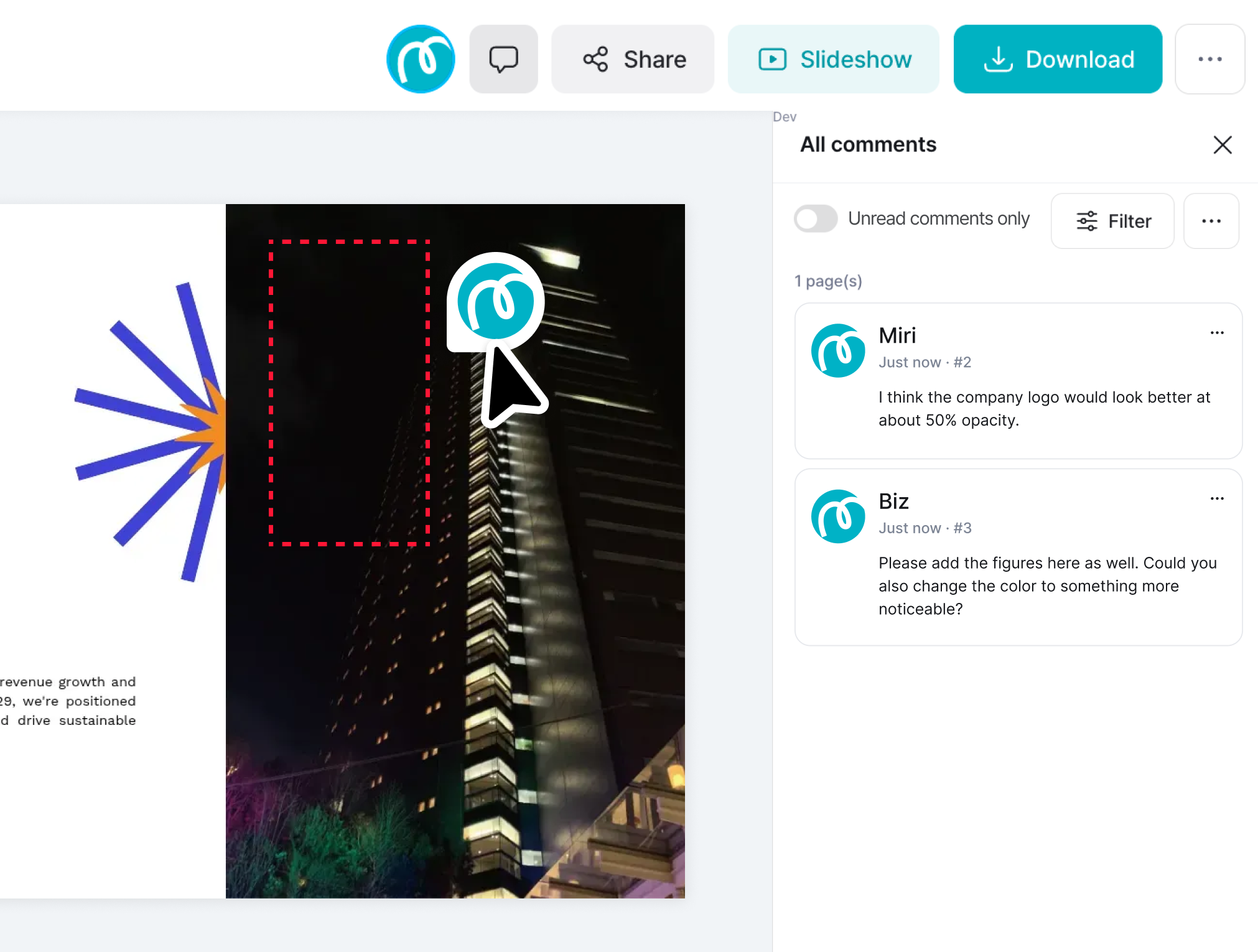
Comments on a shared design: an area note about logo opacity and a request to add figures, listed in the All comments panel

Professionals: get feedback on report and presentation drafts

Share a draft with your team, and their comments gather on the same design without sending files back and forth.

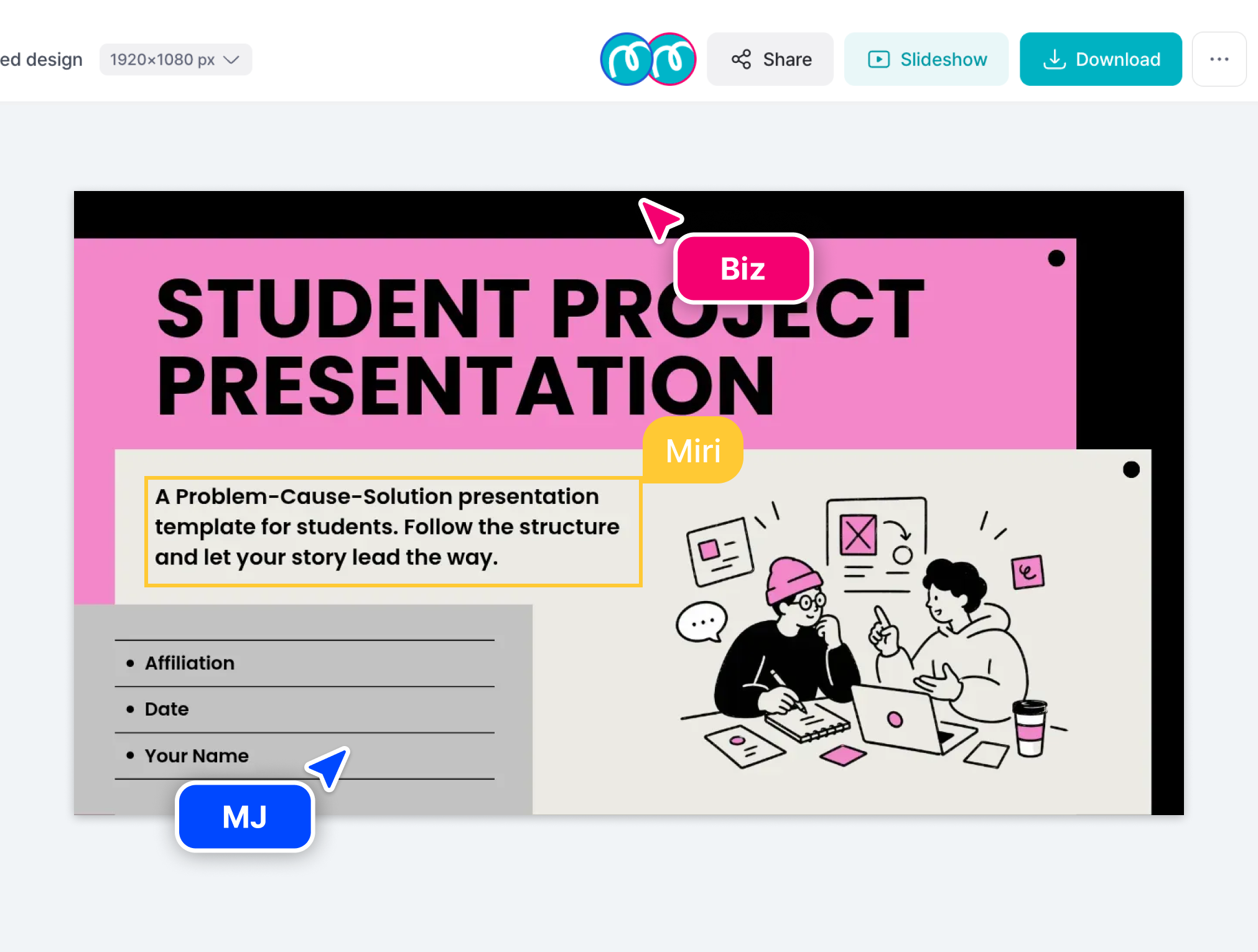
Co-editing a shared design: named cursors for Miri, Biz, and MJ on a Student Project Presentation slide in the editor

Students: create group presentations

Edit the same presentation with your teammates and finish it as one project.

Quiz design published on the web: a browser at miricanvas.com showing Question 1, Which planet is closest to the Sun?

Teachers and instructors: hand out lesson slides and quizzes

Send one link, and each student can open it on their own.

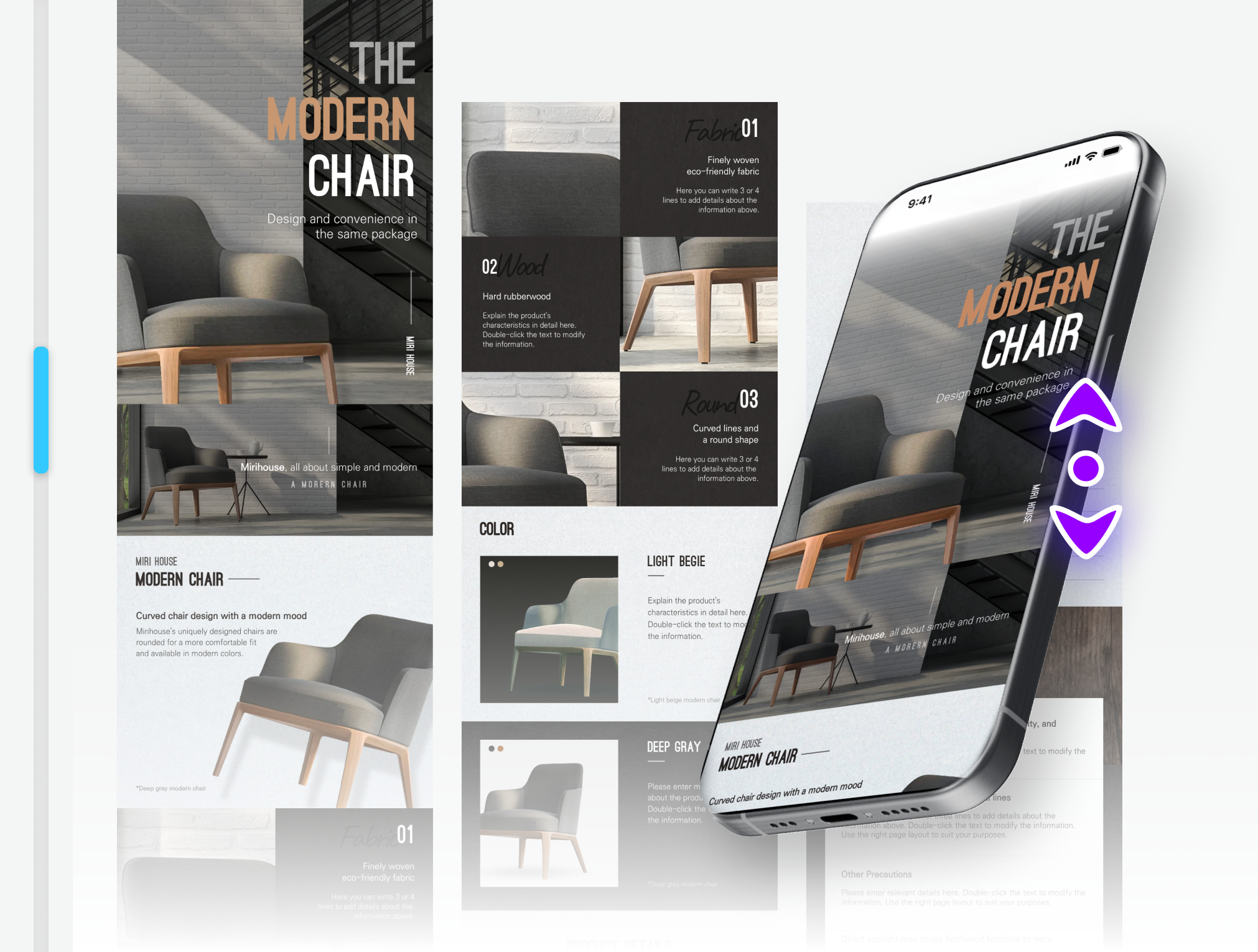
Published design scrolling vertically on a smartphone: THE MODERN CHAIR product page fitted to the phone screen

Marketers: publish event pages and carousel posts

Publish a vertical scroll web page and send the link by text or email to spread the word.

Share with one link, no download needed

Anyone with the link can see a published design as a view-only page, so no account is needed. You can share the published link on social media right away. Link sharing in the Share tab is different from publishing. Change Access to "Anyone with the link" to give the same access to everyone at once. Downloading sends a file, but publishing sends a link, so your edits to the original show up.

Design opened from a shared link: a Trivia Game slide plays in the browser from a MiriCanvas URL, with no file to download
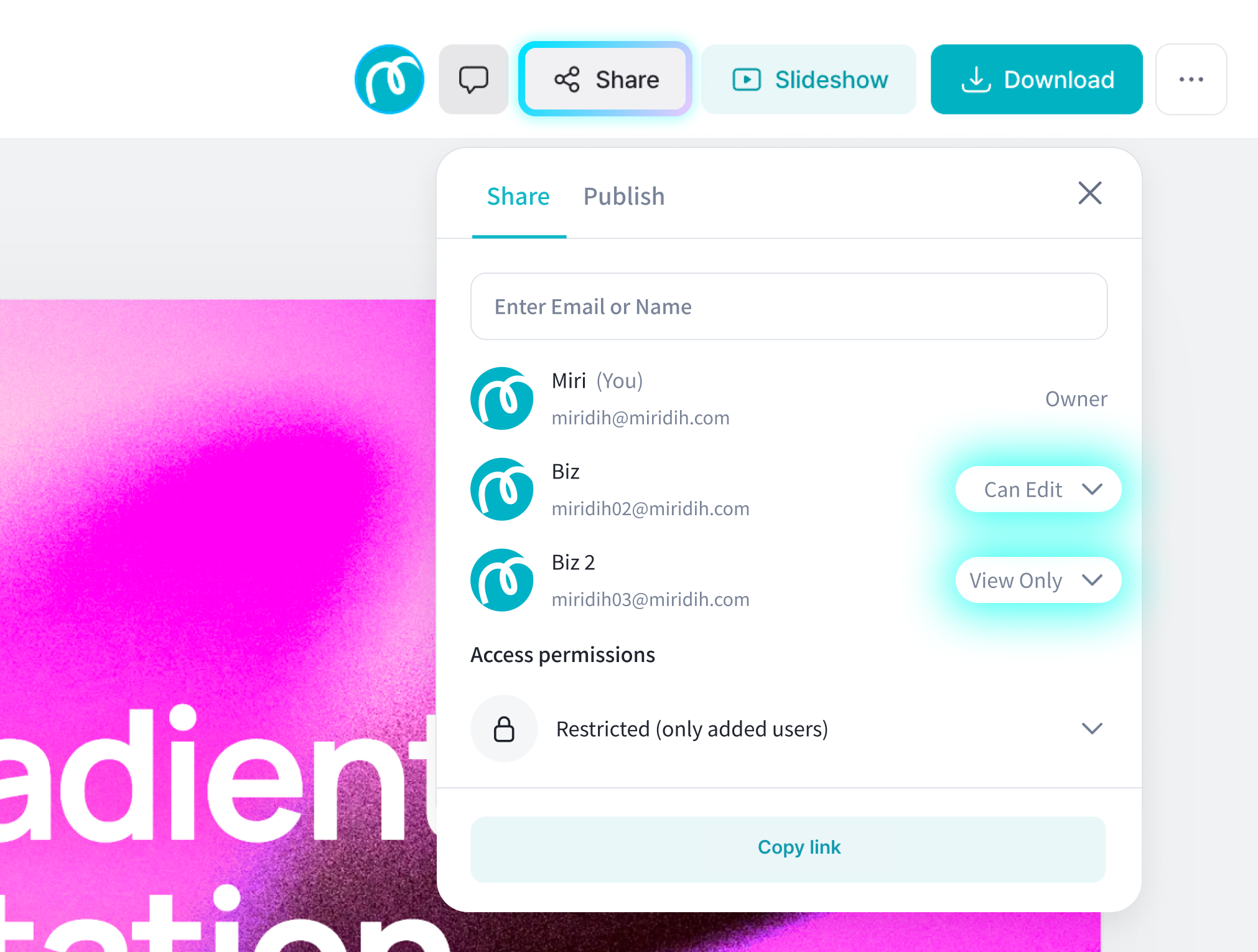
Share panel with access set per person: Biz can edit, Biz 2 is view only, and access is restricted to added users

Set access for each person and work together

Add people, groups, or teams by email or name, and set access for each. When someone with Can view or Can comment asks for more access, the owner can approve or decline. Designs shared with you appear in Shared designs in your workspace. When you no longer need it, you can remove access or make the design private.

Show your edits right away

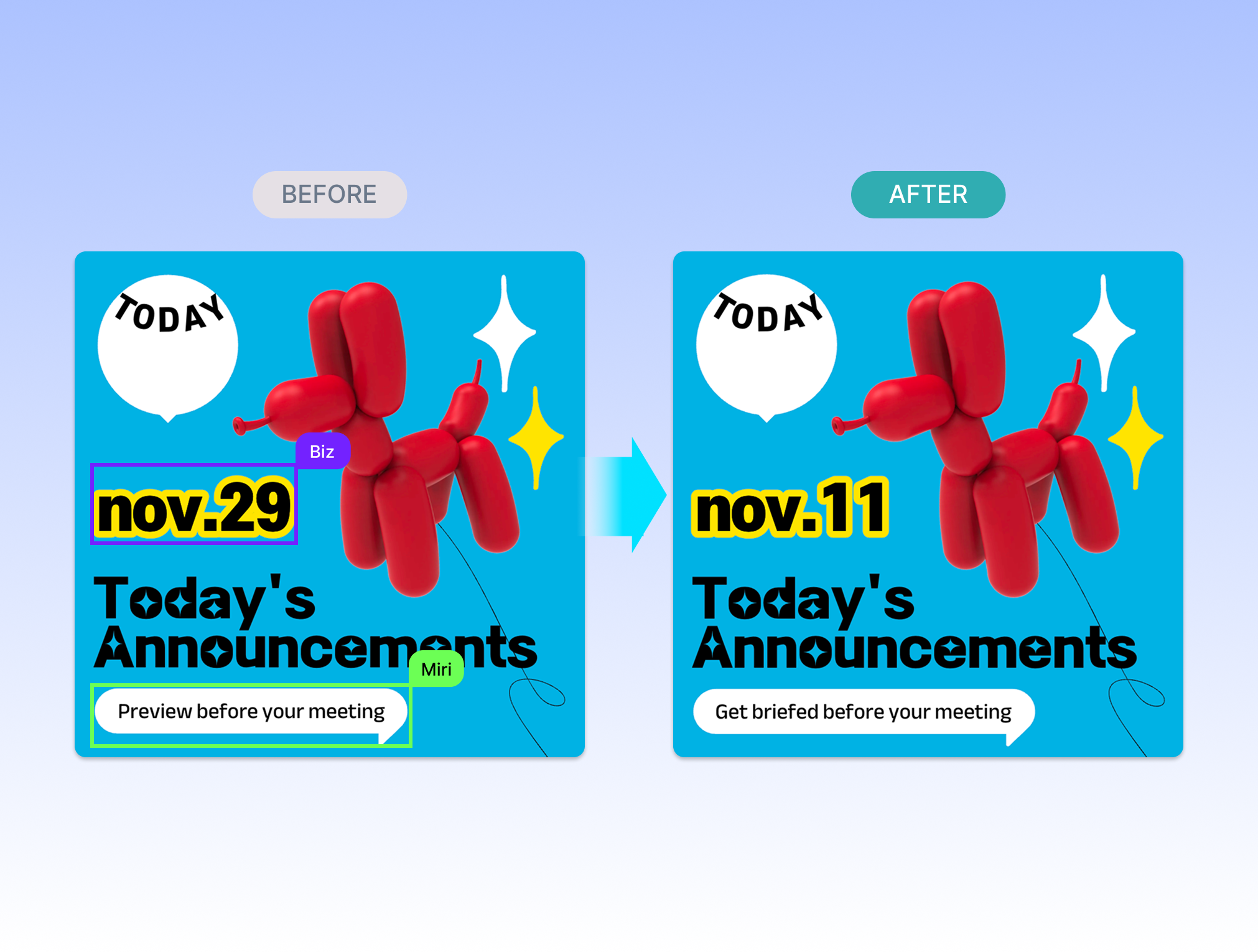
When people open the published link again, they see your latest changes. Designs you add to a blog or homepage with Insert HTML code also update with the original, which works well for menus and notices. With Share template link, people can make their own copy and edit it.

Before and after an edit appears in the shared design: the date on a Today's Announcements post changes from nov.29 to nov.11
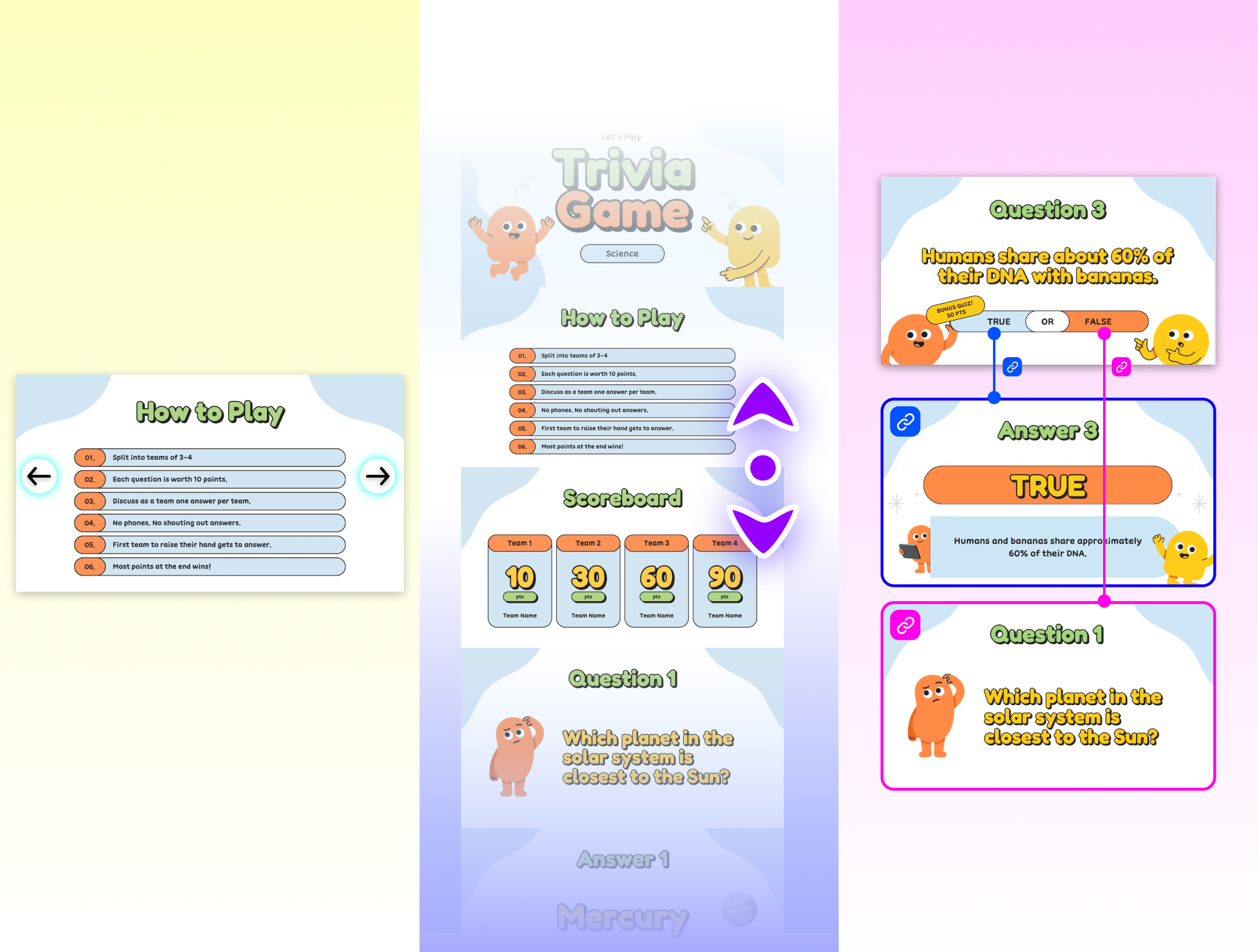
Three page formats for publishing: a quiz design as left/right slides, a vertical scroll page, and linked pages

Pick a format and publish it like a web page

Choose from three formats. Slides work well for presentations, scroll for announcements, and quiz for Q&A content.

Videos, YouTube videos, animated GIFs, and animated elements play, and links work too.

Share design and Publish FAQ

Is Share design and Publish free?

What's the difference between sharing and publishing?

Why send a link instead of downloading?

Can people outside my team edit through link sharing?

How do I stop publishing?

Where can I find designs shared with me?

How do I share a design so people can view but not edit?

Try Share design and Publish now

Share design and Publish lets you send report drafts and event pages with a single link.

Get started on MiriCanvas