

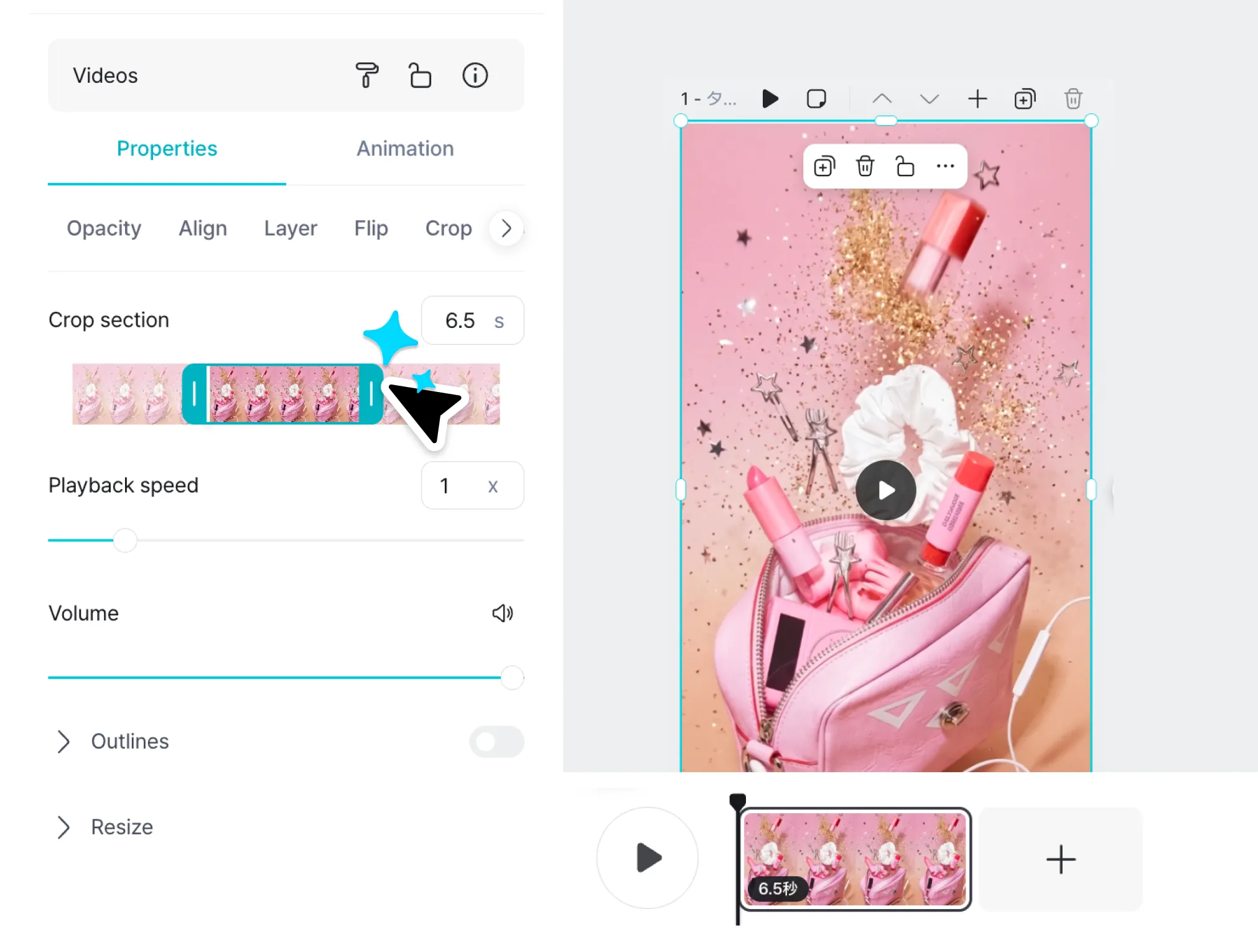
Select a video in your design.
Set a start and end point in a long video in your design, and only the part you want will play. Go on to make short videos for social media right in the editor, without switching to other editing software.


Keep only the part of a video you need, right in the editor.

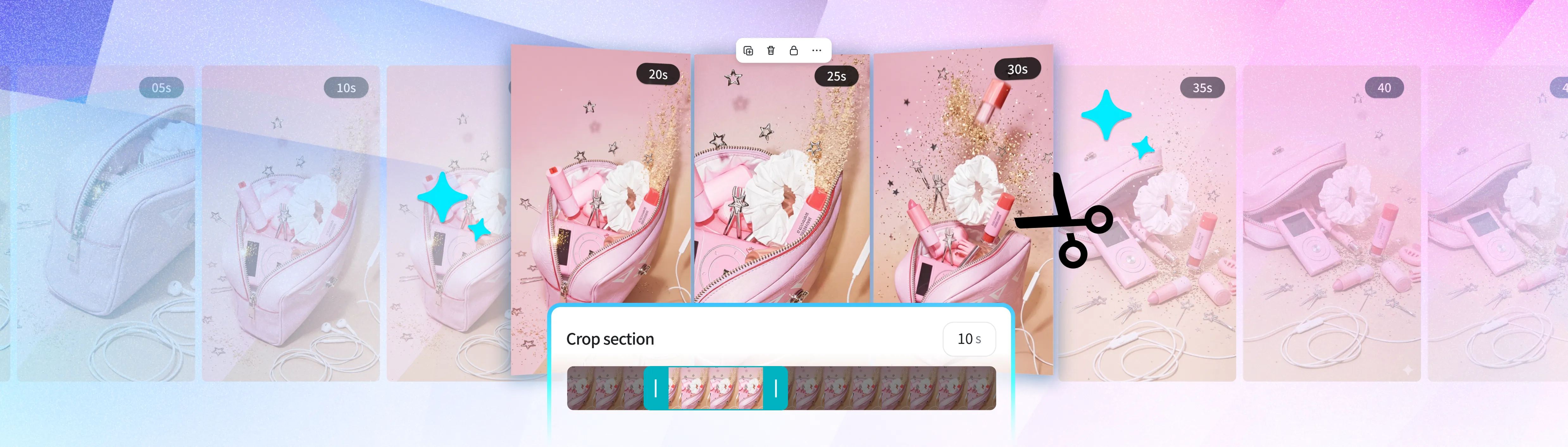
Set start and end points in 0.1-second steps to pick exactly the scene you want.

Your original video doesn't change, so you can bring back trimmed parts anytime.

Select a video in your design.

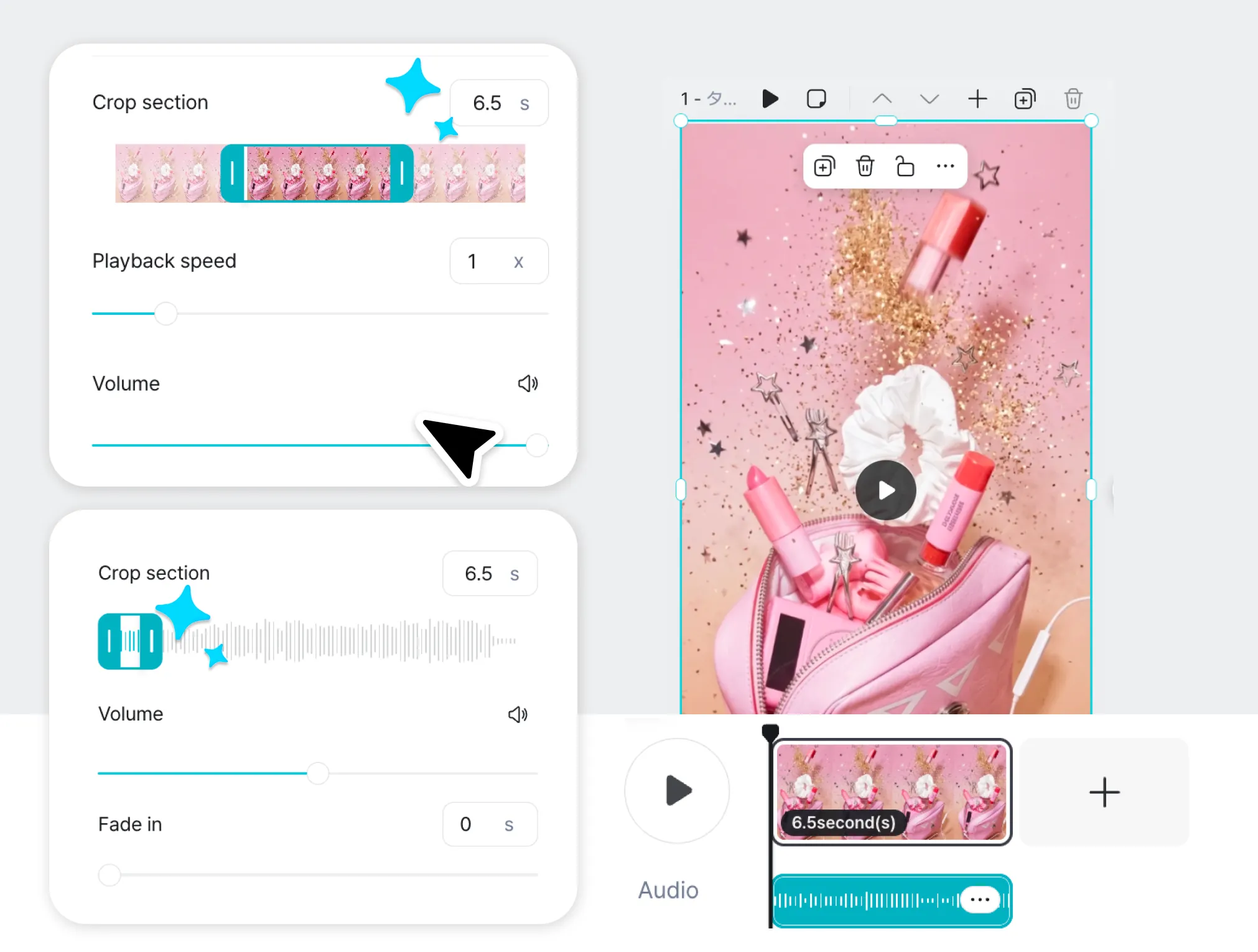
In toolbar mode, click the scissors icon in the editor toolbar. In panel mode, click Crop section in the properties panel on the left. The scissors icon shows how many seconds you're currently keeping.
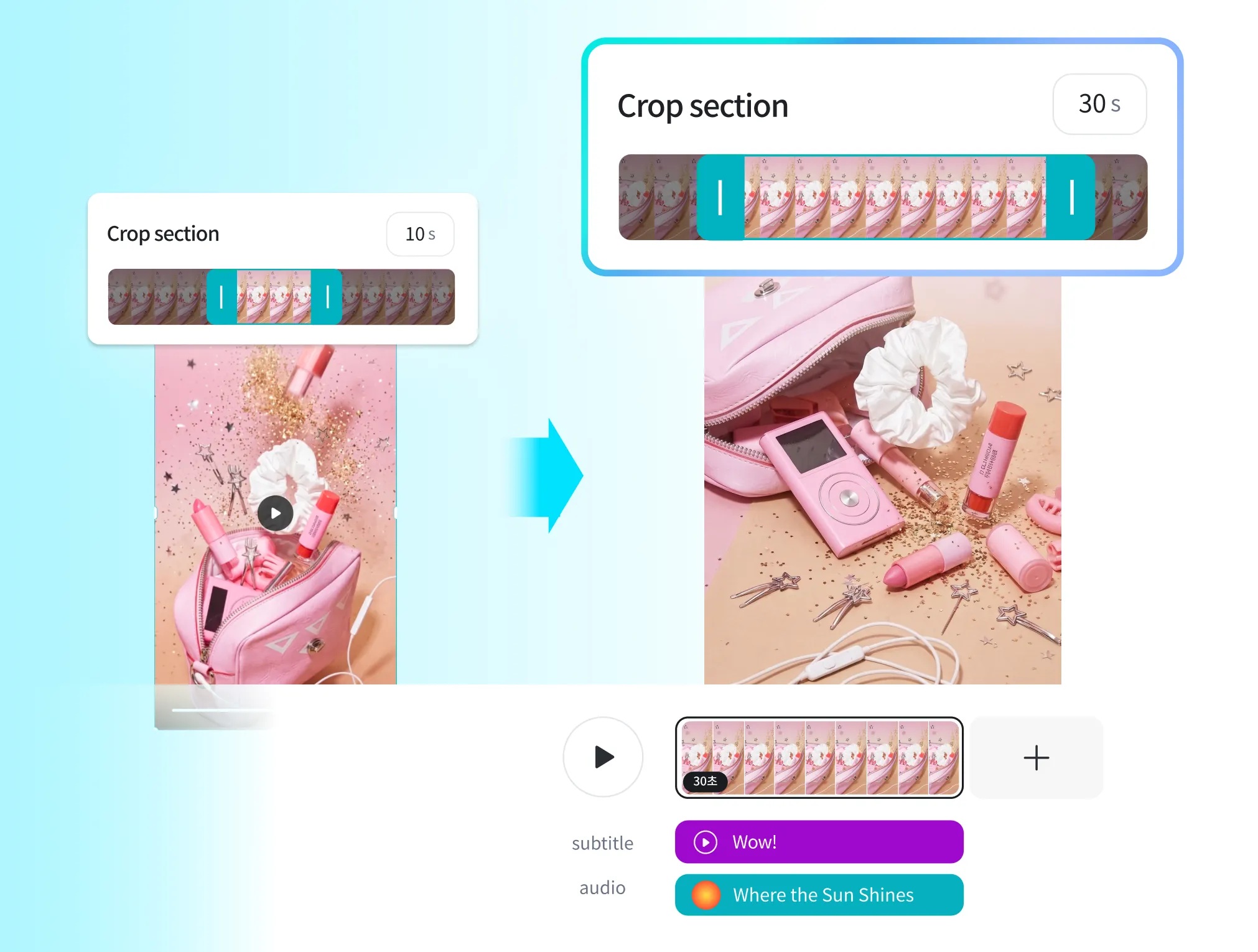
Drag the start and end handles to set the part to keep, or type the length to keep in seconds (in 0.1-second steps). Play the video to check where to trim.
Keep the length you set and drag the whole section forward or backward. In toolbar mode, click Apply to save your changes.
Play the shortened video to check it, then download it as an MP4.
Video trimming is editing that cuts the beginning and end of a video to keep only the part you need. It's also called cutting a video.
The video trimming feature on MiriCanvas sets the start and end points of the section to play in a video or audio element in your design. You can use it on MP4 and MOV files you upload, MiriCanvas video elements, and audio elements, and your original video doesn't change.
It's different from Crop, which cuts out part of the frame. Crop reduces the visible area, while Crop section shortens the playback time.

Trim the extra footage at the start and end of your video to fit Shorts and Reels.

Make only the part with the explanation you need play in a video in your class materials.

Shorten a demo video in your presentation to fit your speaking time.

Keep only the scenes showing your signature menu items in a store promo video.
You can trim videos placed in frames and videos used as page backgrounds the same way, and set the playback section of audio elements with the same button.
After trimming, the page playback time changes to match the longest video on the page, and only the section you kept appears in slideshows and MP4 downloads.


Your original video doesn't change, so you can bring back trimmed parts anytime. Extend or move the section again to find just the right scene.
Keep only the scenes you need right in your design, no video editing tools required. Polish videos for social media, class materials, and presentations now.