
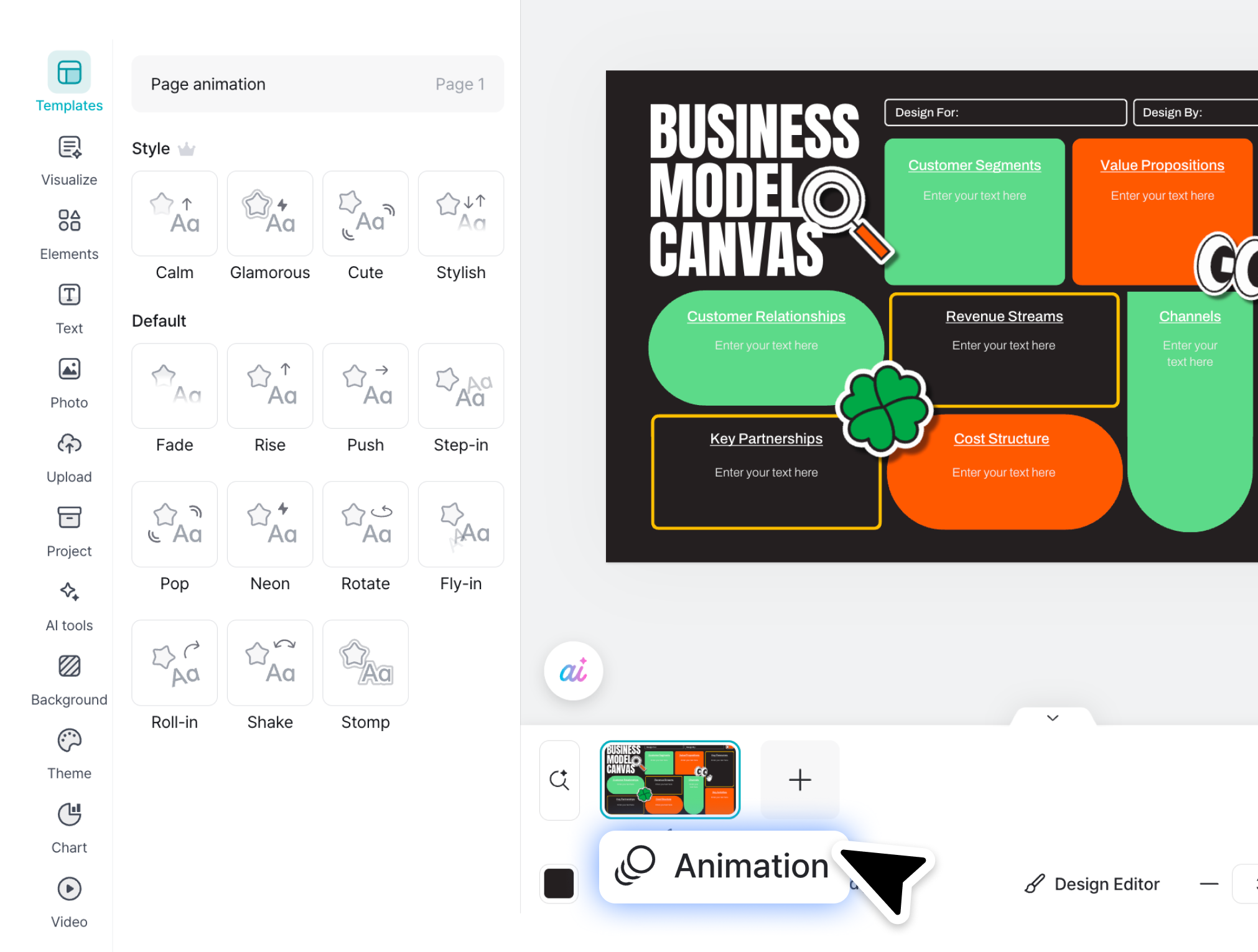
Select the page you want to animate, then click Animation in the editor toolbar above the canvas to open the page animation panel.

With page animation, pick one effect and every element on the page appears in turn. Turn a single carousel post or a multi-page deck into an animated presentation in seconds.

Pick one effect, and every element on the page gets the same motion.

Elements appear one after another automatically based on their position and size.

Text, photos and videos, and other elements automatically get different effects.

Apply the effect you picked to every page in your design at once.

Select the page you want to animate, then click Animation in the editor toolbar above the canvas to open the page animation panel.
Hover over an effect to play it on the current page, so you can see the motion before applying it.
Click the effect you like. Every element on the page is animated, and the order is set automatically.
Click Apply to all pages to add the current page's effect to every page in your design. You can also select multiple pages and add the same effect to them.
To keep the motion, download your design as MP4 or GIF. For designs with animation, MP4 is selected as the default download format.
Animation adds motion, such as entrances and exits, to static design elements to guide the viewer's eye.
The page animation feature on MiriCanvas adds this motion to every element on a page at once. Unlike element animation, which adds an effect to one element, page animation moves all elements with a single effect and sets the order for you.
Page animation is different from transitions, which change the whole screen when you move between pages. You can set page-to-page effects with Fade effect, Direction, and Style in the slideshow settings.

Add the same entrance effect across your whole presentation for a consistent flow from page to page.

Add an effect to all your lesson slides and run them as a slideshow, so content appears in turn on each page.

Add effects to carousel posts and social media graphics, then download them as MP4 or GIF and post.

Turn store notices and event promotion designs into videos for in-store screens and social media.
There are 11 basic effects: Fade, Rise, Push, Step-in, Pop, Neon, Rotate, Fly-in, Roll-in, Shake, and Stomp. Pick one, and the same effect is applied to every element on the page.
After adding the effect, if you want a specific element to move differently, you can switch just that element to element animation.

The order in which elements appear is set automatically to match the effect. Elements appear in reading order from top to bottom and left to right, by distance from the center of the page, or by size, so you don't need to adjust the order yourself.
There are 4 style effects: Calm, Glamorous, Cute, and Stylish. Each one automatically assigns different effects to text, photos and videos, and other elements.
Open carousel posts or a presentation and pick one effect. Apply it to all pages, save as MP4 or GIF, and it's ready for social media or your next presentation.