
Element animation: add motion to your designs without video editing tools

Add entrance and exit motion to text and elements with element animation. Just click an effect to apply it, and finish presentations and short videos in one place.

Try element animation

Element animation features on MiriCanvas

Choose an effect to add motion

Select an element and choose an effect to add motion right away.

Text-only effects and letter or word animation

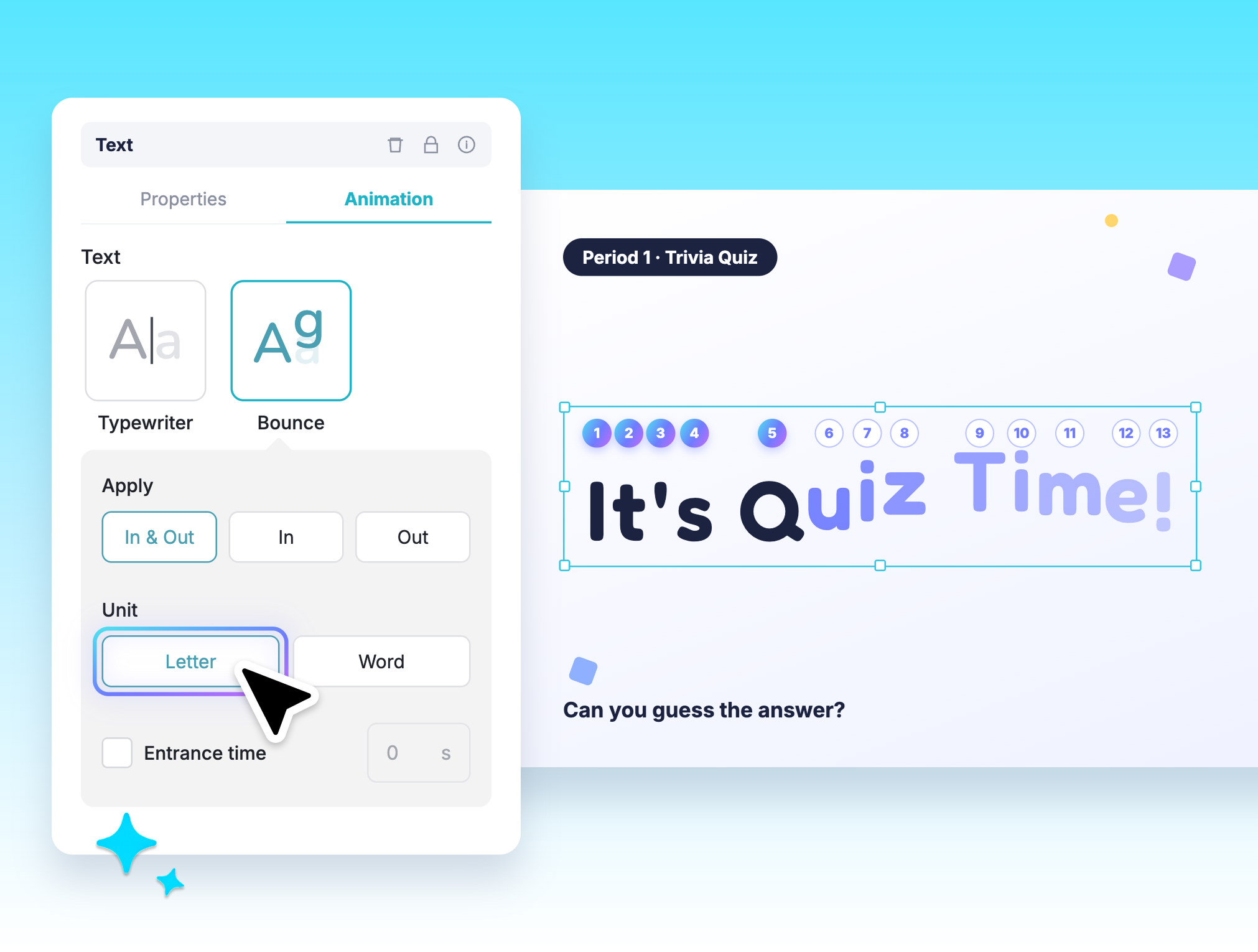
Give text dedicated effects like Typewriter and Bounce, and animate it letter by letter or word by word.

Set speed, direction, and start time for each element

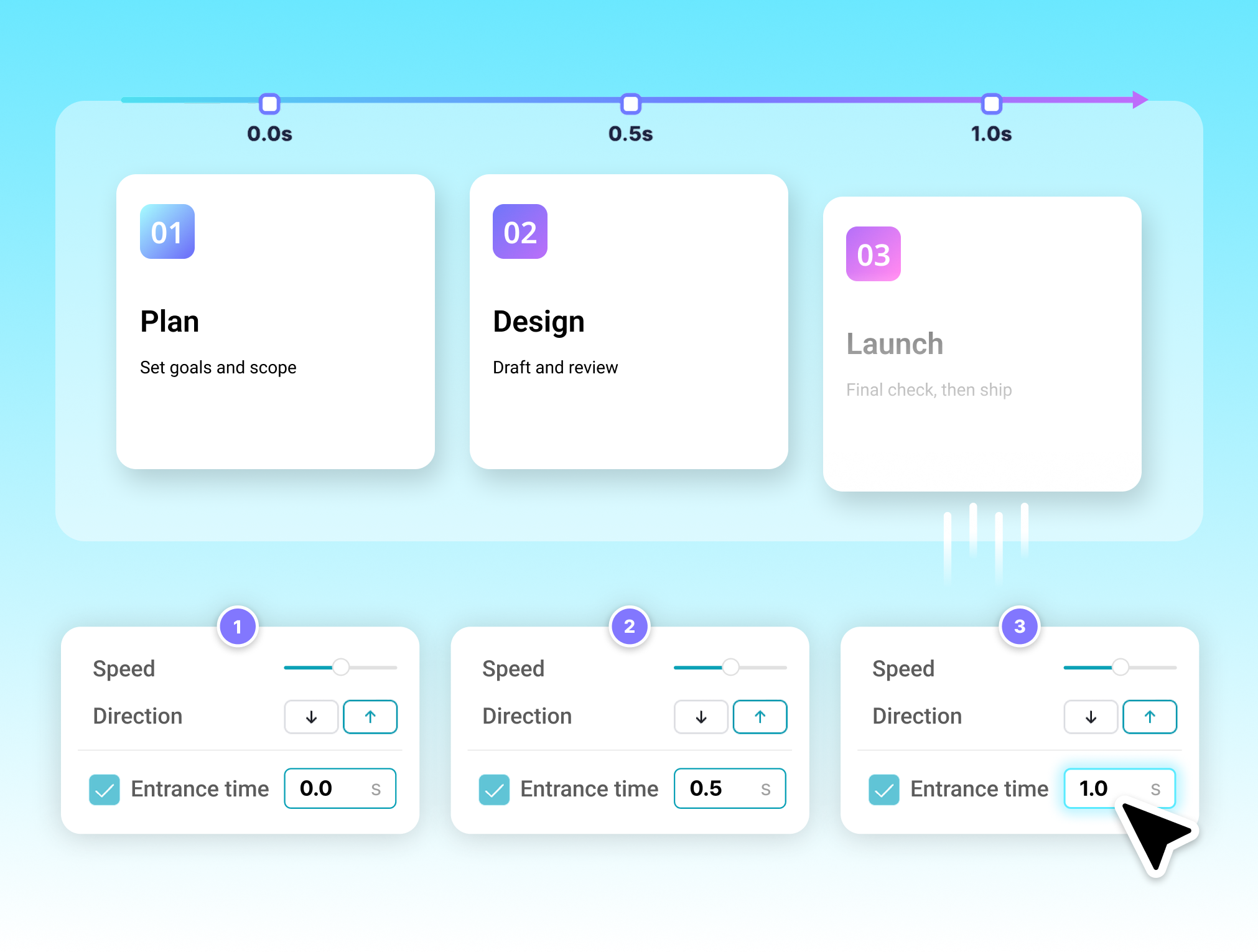
Set the speed, direction, and start time separately for each element.

Plays the same in slideshows, published designs, MP4, and GIF

Your animations play the same way in slideshows, published designs, MP4, and GIF.

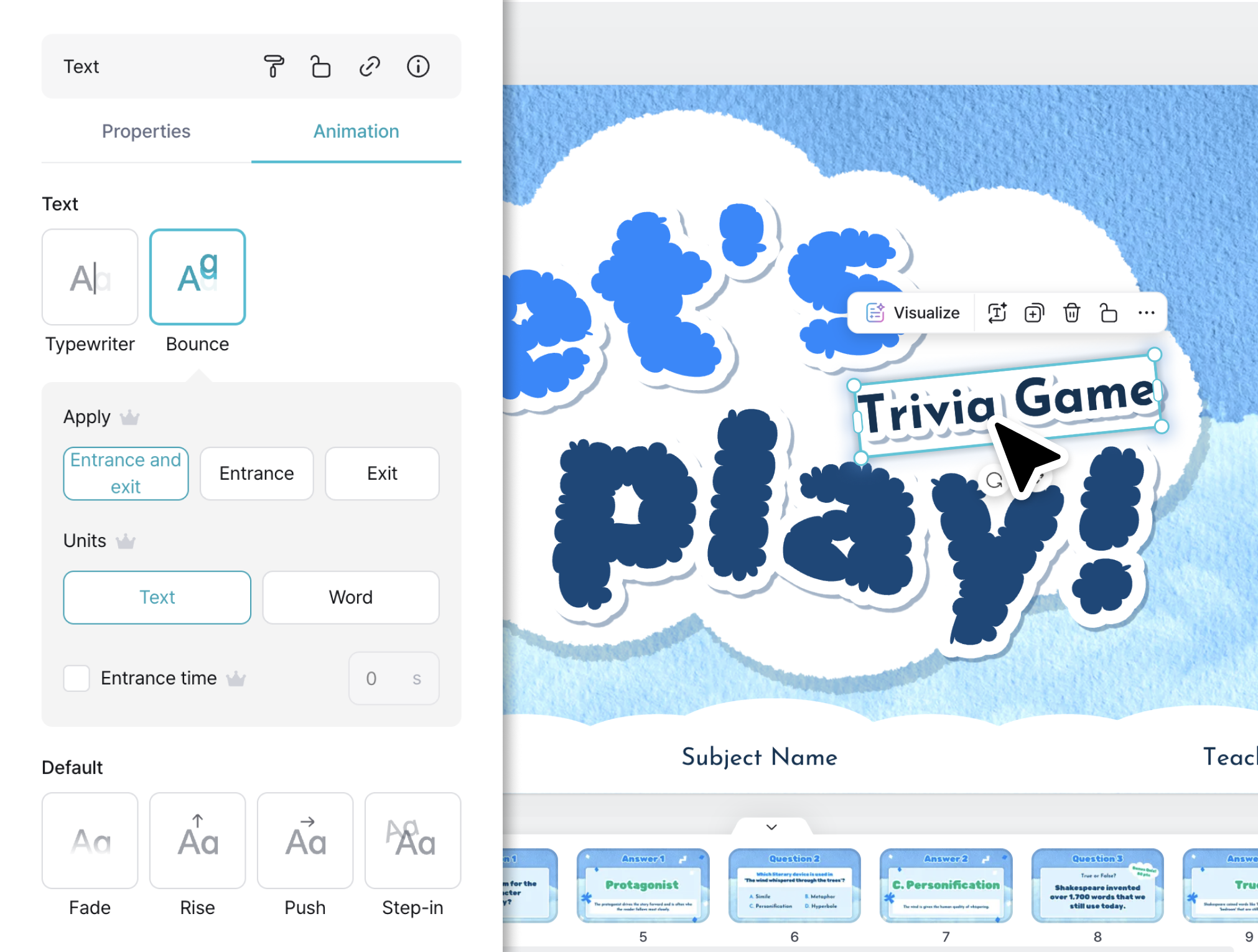
Adding element animation: Trivia Game text selected, with Typewriter and Bounce effects in the Animation tab

How to add element animation

1

Select an element and open Animation

Select the text or element you want to animate, then click Animation in the editor toolbar above the canvas. Select several elements together to apply the same effect at once.

2

Preview and apply an effect

Hover over an effect to play it right on the canvas and preview the motion. Click the effect you like to apply it.

3

Adjust options like unit and start time

For text, you can switch the unit to whole, letter, or word. Give each element a different start time to make them appear in the order you want.

4

Check playback and save

To keep the motion, download your design as an MP4 or GIF, or share it as a slideshow or published design. You can remove an applied effect with a single button.

What is element animation?

Animation is an effect that adds motion, such as entrances and exits, to static design elements to guide the viewer's eye. Element animation on MiriCanvas adds this kind of motion to each piece of text and each element in your design.

You apply it right in the editor without moving your design to a video editing tool. You can also turn text into a text animation that moves letter by letter or word by word.

When to use element animation

Professionals: reveal key figures in a presentation one by one

Bring in key figures or charts one at a time to guide your audience's attention as you present. You can present right away with a slideshow.

Teachers and instructors: reveal answers with a click

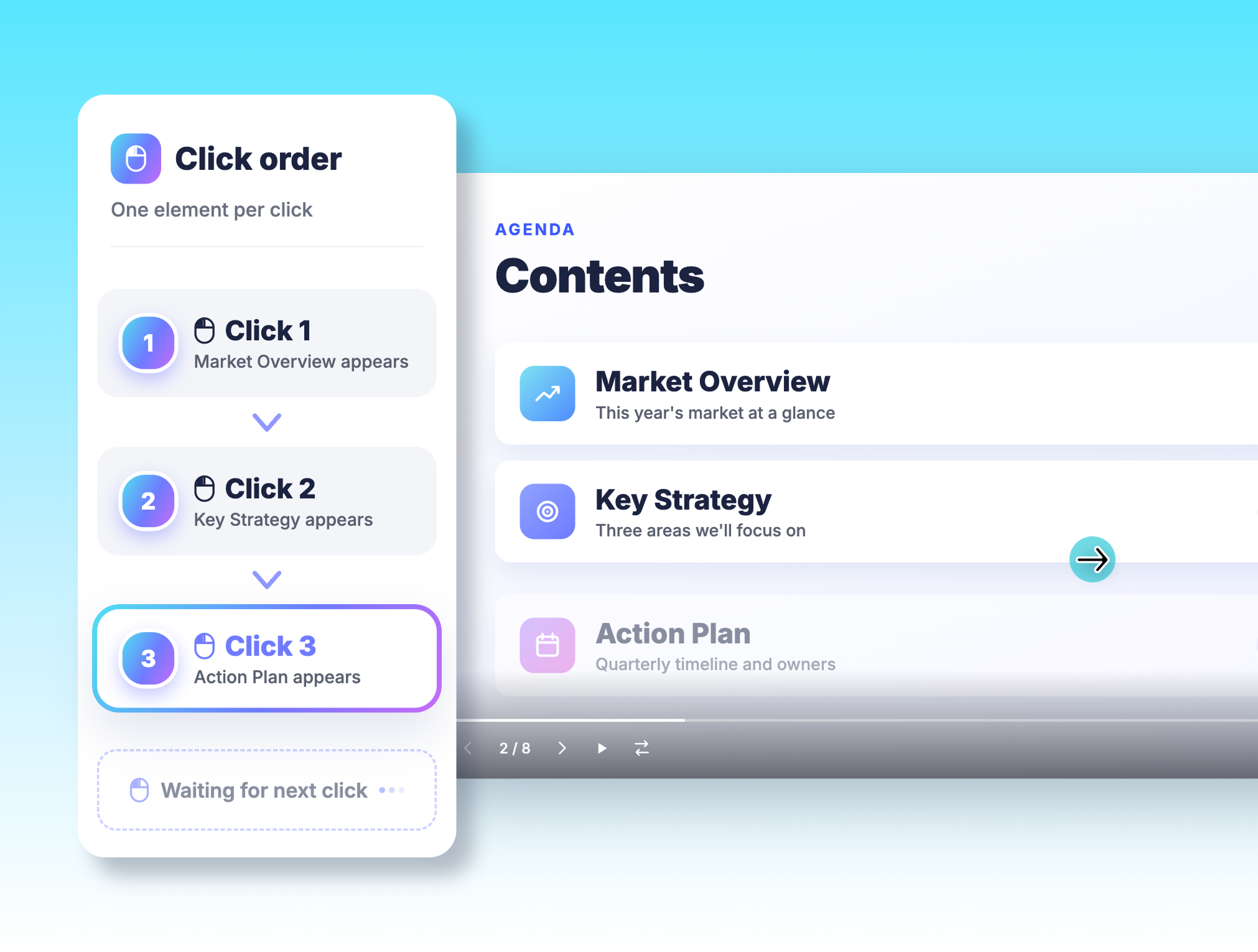
Show a question first, then make the answer appear when you click. Just change Element entrance to Click in the slideshow settings.

Marketers: add motion to social media promo images

Add motion to the title and product photos in your promo image, then download it as an MP4 or GIF to post on social media.

Creators: add a typewriter effect to Shorts and Reels titles

Add a typewriter effect to your video title so it appears one letter at a time.

Text-only effects and letter or word animation

There are 11 basic effects: Fade, Rise, Push, Step-in, Pop, Neon, Rotate, Fly-in, Roll-in, Shake, and Stomp. When you select text, two more effects appear: Typewriter and Bounce. Text can move as a whole, by letter, or by word (except with Step-in). If you use Fade on text by letter or by word, you can also choose the direction they appear in.

Text animation settings: the Bounce effect applied by letter to It's Quiz Time!, with order numbers above each letter
Speed, direction, and entrance time per element: Plan, Design, and Launch cards set to appear at 0.0s, 0.5s, and 1.0s

Set speed, direction, and start time for each element

You can adjust the speed from 0.5x to 1.5x in steps of 0.1. For direction, choose up or down for Rise, and left or right for Push and Roll-in. Turn on Exit in reverse to make an element leave in the opposite direction from the way it came in. Start time sets how many seconds after the page begins an element appears. Give each element a different start time to bring them in the order you want.

Plays the same in slideshows, published designs, MP4, and GIF

Your animations play the same way in slideshows, published design links, and MP4 and GIF downloads. Slideshows play automatically by default. Change Element entrance to Click in the slideshow settings, and elements appear one at a time with each click. In published designs, motion shows in the Slide to left/right style and the Quiz and personality test style.

Element animations in a slideshow by click order: Market Overview, Key Strategy, and Action Plan appear one click at a time

Element animation FAQ

Is element animation free on MiriCanvas?

Where can I see the motion?

What effects can I use on text?

How do I animate several elements together?

How is it different from page animation?

Add element animation now

Make the charts in your presentation and the titles in your social media promo images move right in the editor. Select an element and click an effect.

Try element animation