Smart Blocks: build presentations without resizing and aligning by hand

Spend less time aligning, resizing, and spacing with Smart Blocks. When you add or change content, the elements inside the block arrange themselves.

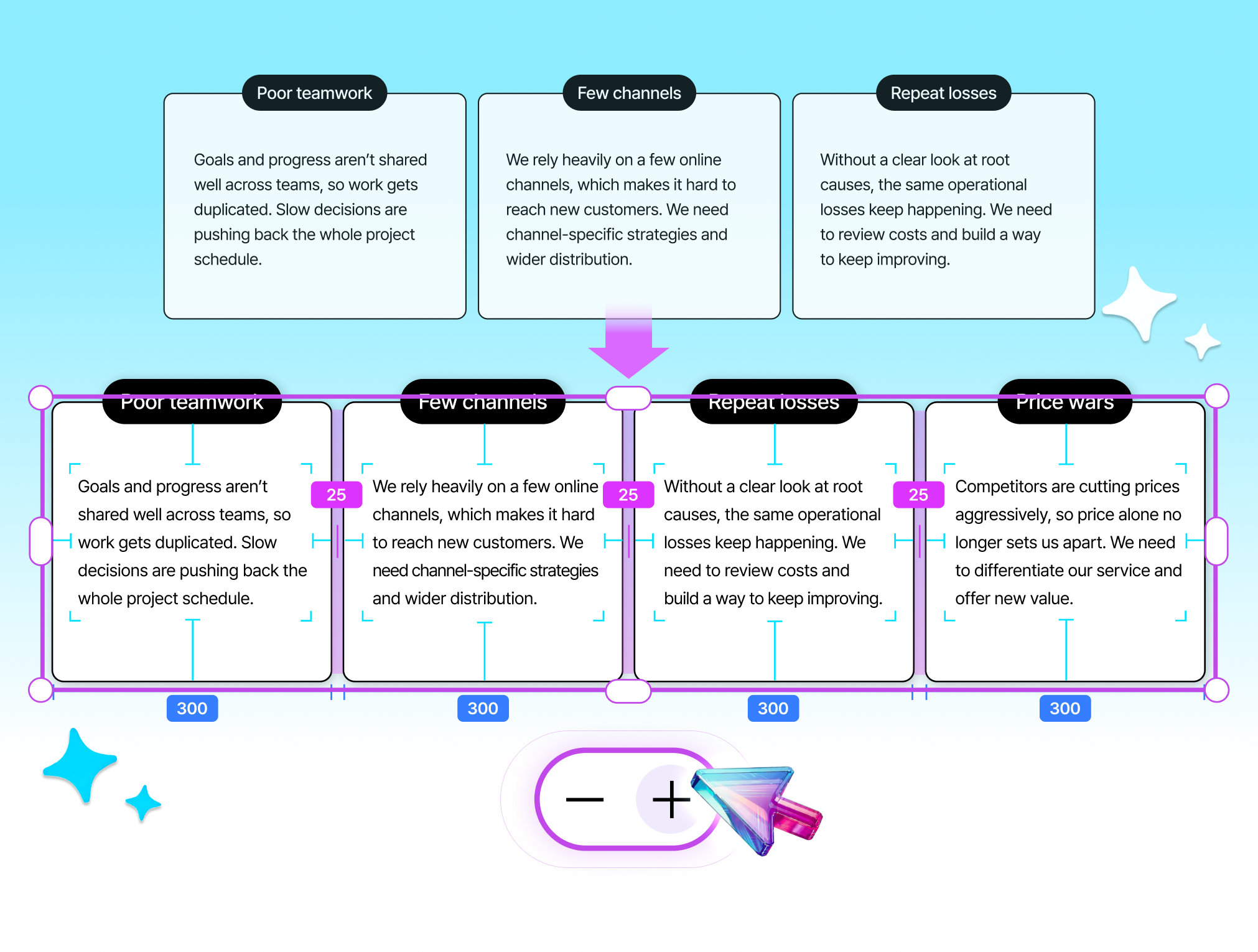
Smart Block example: adding a fourth card to a three-card block keeps every card 300 wide with 25 spacing, auto-aligned

Smart Block features on MiriCanvas

Size and alignment that adjust automatically

Size and alignment adjust automatically when you add elements or change content.

Editing without repeating the same steps

Add or remove cards with a button, and your layout stays the same.

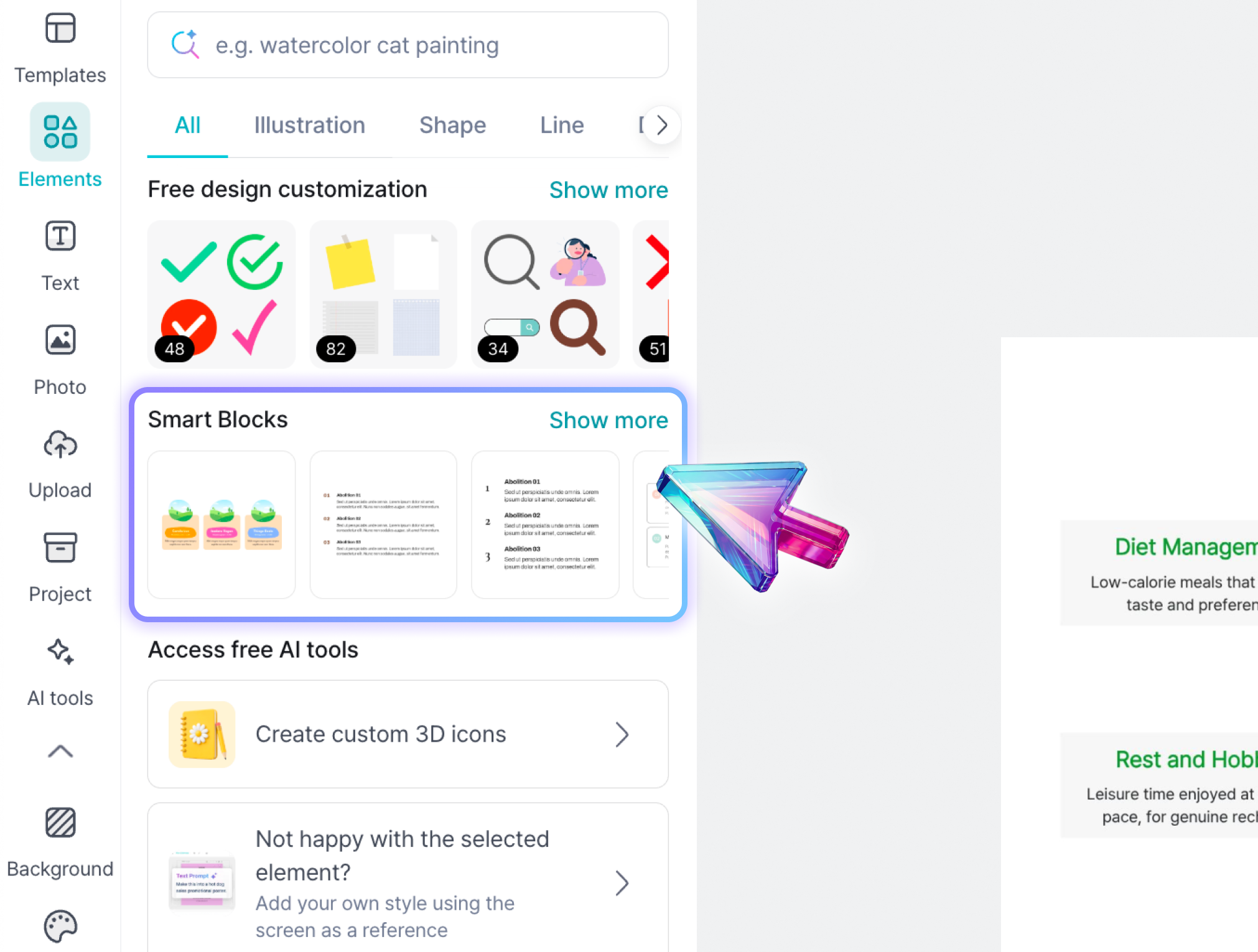
Smart Blocks row highlighted in the Elements menu on the left side of the MiriCanvas editor, ready to add to a slide

How to use Smart Blocks

1

Add a Smart Block from the Elements menu

Pick a Smart Block from the [Elements] menu on the left of the editor and add it to your canvas. You can also start from a presentation template that includes Smart Blocks.

2

Change the content

Change the text and images in the block, and the size and alignment adjust automatically.

3

Adjust the number of cards

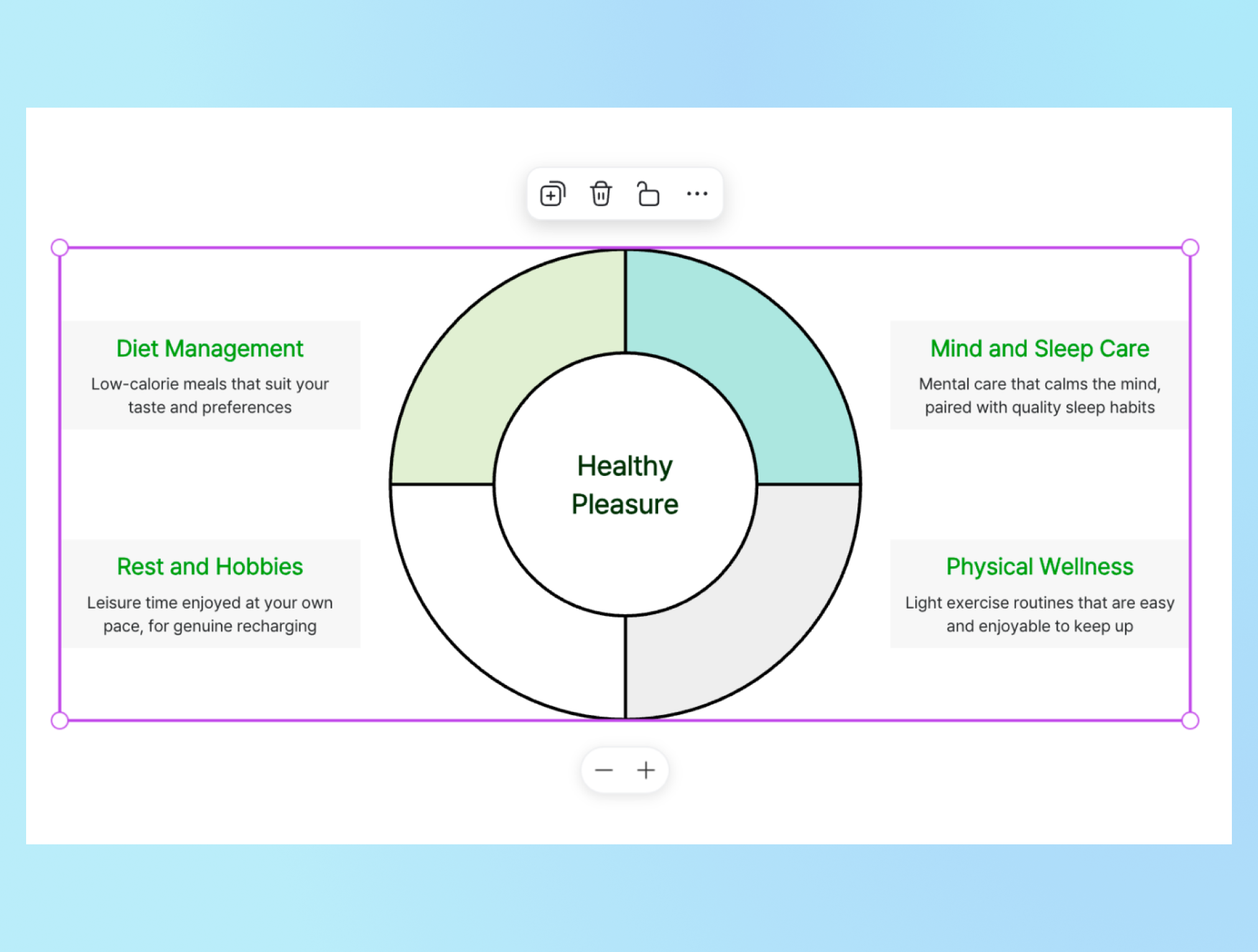
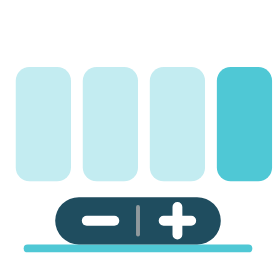
Select a block and use the [− +] buttons that appear on the right to add or remove cards.

What are Smart Blocks?

Tidying a layout means matching the size, alignment, and spacing of elements so your design looks clean.

Smart Blocks on MiriCanvas are grouped elements that resize and align themselves to fit their content, so the block handles this tidying for you. Like SmartArt in PowerPoint, the layout adjusts itself when you add or remove items.

Before, you had to multi-select every element, match sizes and positions one by one, and start over whenever any content changed. Adding an item also meant copying and pasting elements, then fixing the position and spacing again. Smart Blocks take care of this for you.

Alignment and size that adjust when you add elements

When you add a new element to a block, it's placed with consistent alignment. There's no need to reposition each element. When text gets longer, the background rectangle grows with it, and when the text gets shorter, it shrinks too. You don't need to resize the shape separately.

Smart Block that stays aligned as you add cards: the − + button takes it from three to four cards, 300 wide with 25 spacing
Selected Smart Block with − and + buttons: a Healthy Pleasure ring chart with four labeled cards, ready to add or remove one

Add or remove blocks to change only the number of cards

Use the [− +] buttons to add or remove only the cards you need while keeping your layout. In horizontal blocks, the overall size stays the same even as you add cards.

No more copying elements and fixing the spacing every time you add or remove content.

Smart Blocks FAQ

Are Smart Blocks free on MiriCanvas?

Where can I use Smart Blocks?

Can I detach a Smart Block?

How is it different from the diagram maker?

How do I make a shape fit my text?

Are Smart Blocks similar to SmartArt?

Start building presentations with Smart Blocks

Leave the repetitive aligning and resizing to the blocks and focus on your content. Starting from a template makes it even faster.

Try Smart Blocks