Tools

AI資料作成
AIプレゼンテーション
BEST
AI文章作成·作文
AI ポスター
AIかんたん作成
AI画像生成
AI動画生成
HOT
AI キャラメーカー
AI アイコン作成ツール
AI アイコンメーカー
AIイラスト生成
AI ロゴメーカー
AI フリー背景素材
AIクイック編集
AI画像編集
背景除去
高画質化
写真イラスト化
HOT
New!

イラスト一覧を見る
幅広いシーンで使える高品質イラストをご用意しています。
Plans


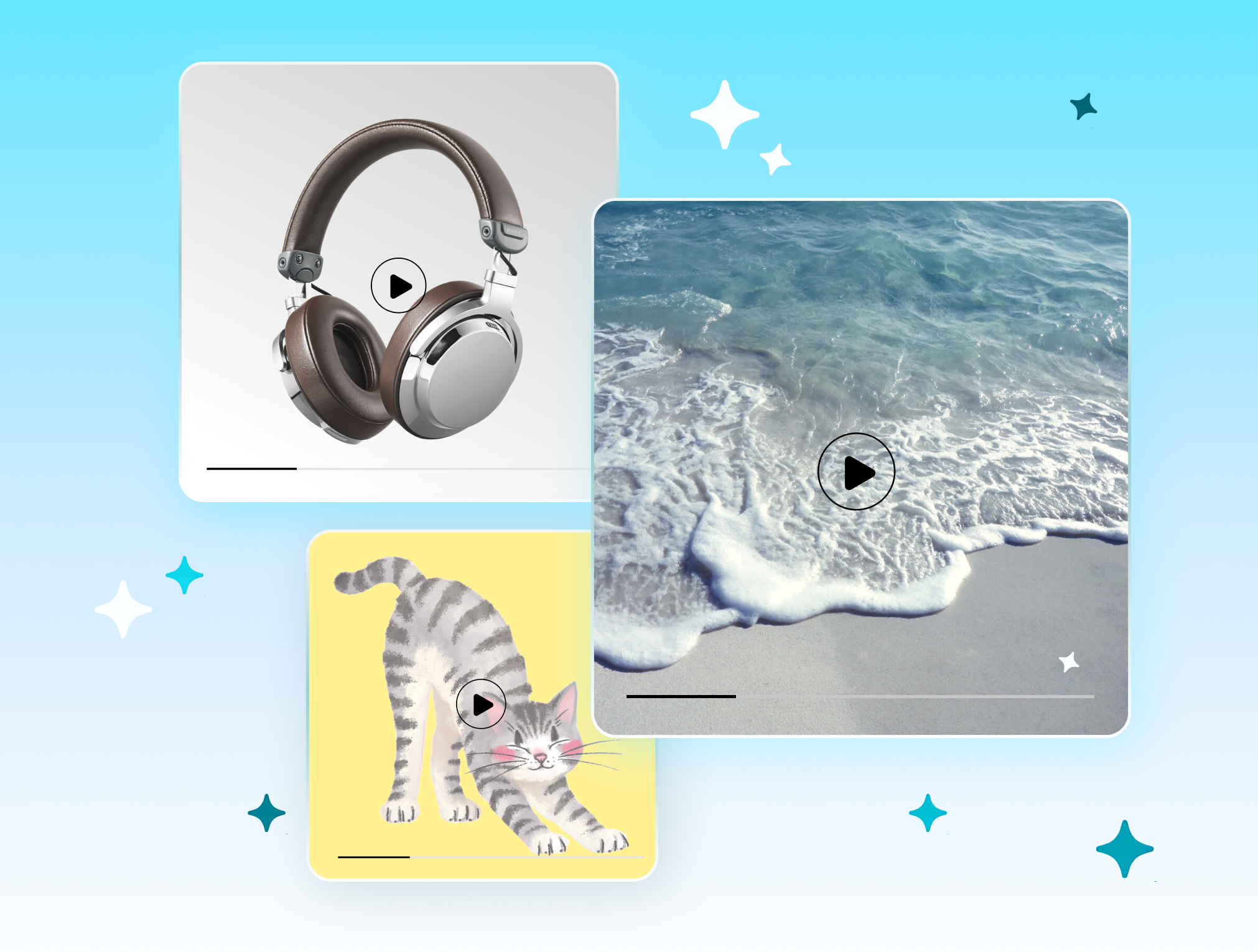
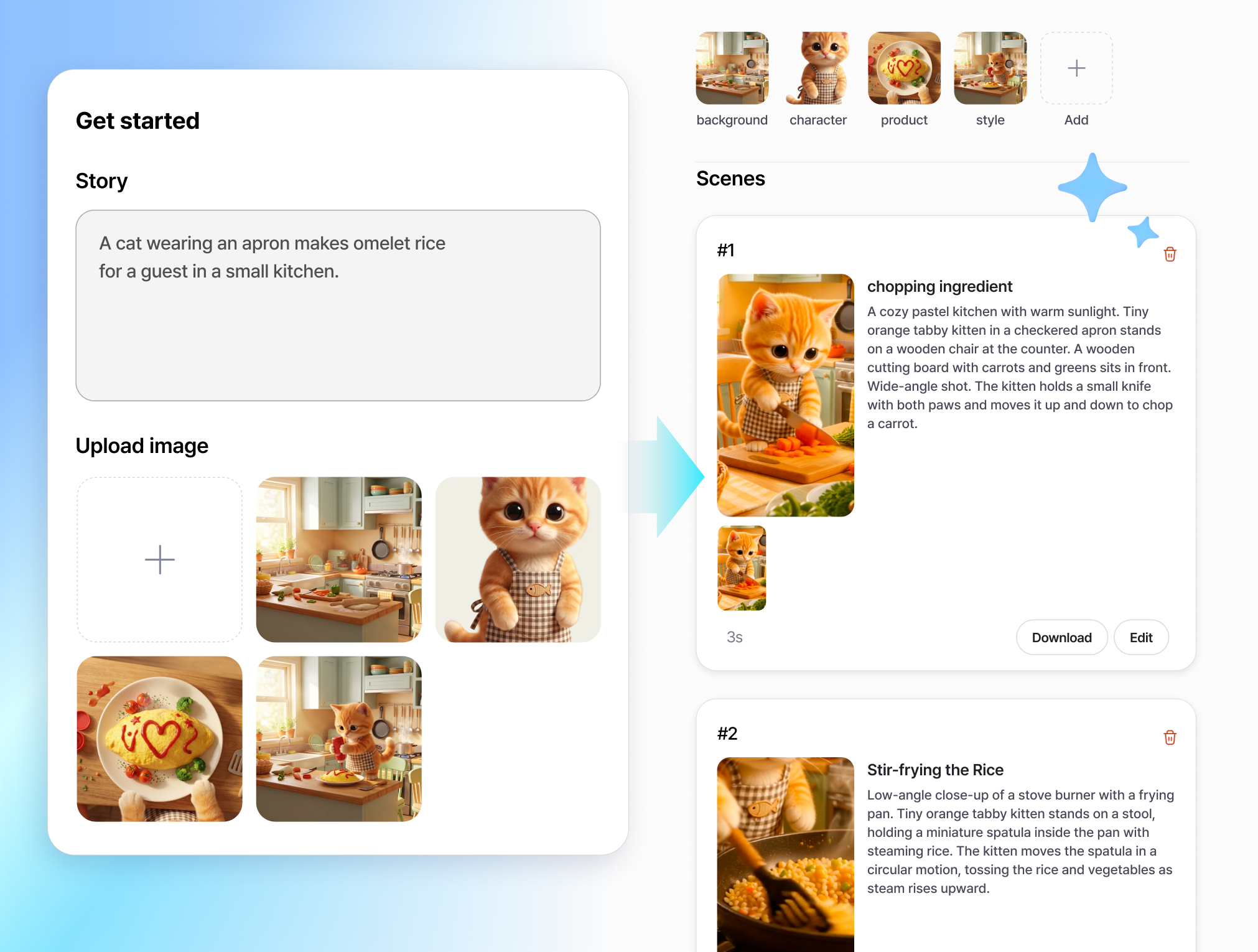
No filming or editing software needed. Describe the scene you want in words or upload an image to create your own video. Add voice, subtitles, and music to your finished video, and wrap it all up right in MiriCanvas.

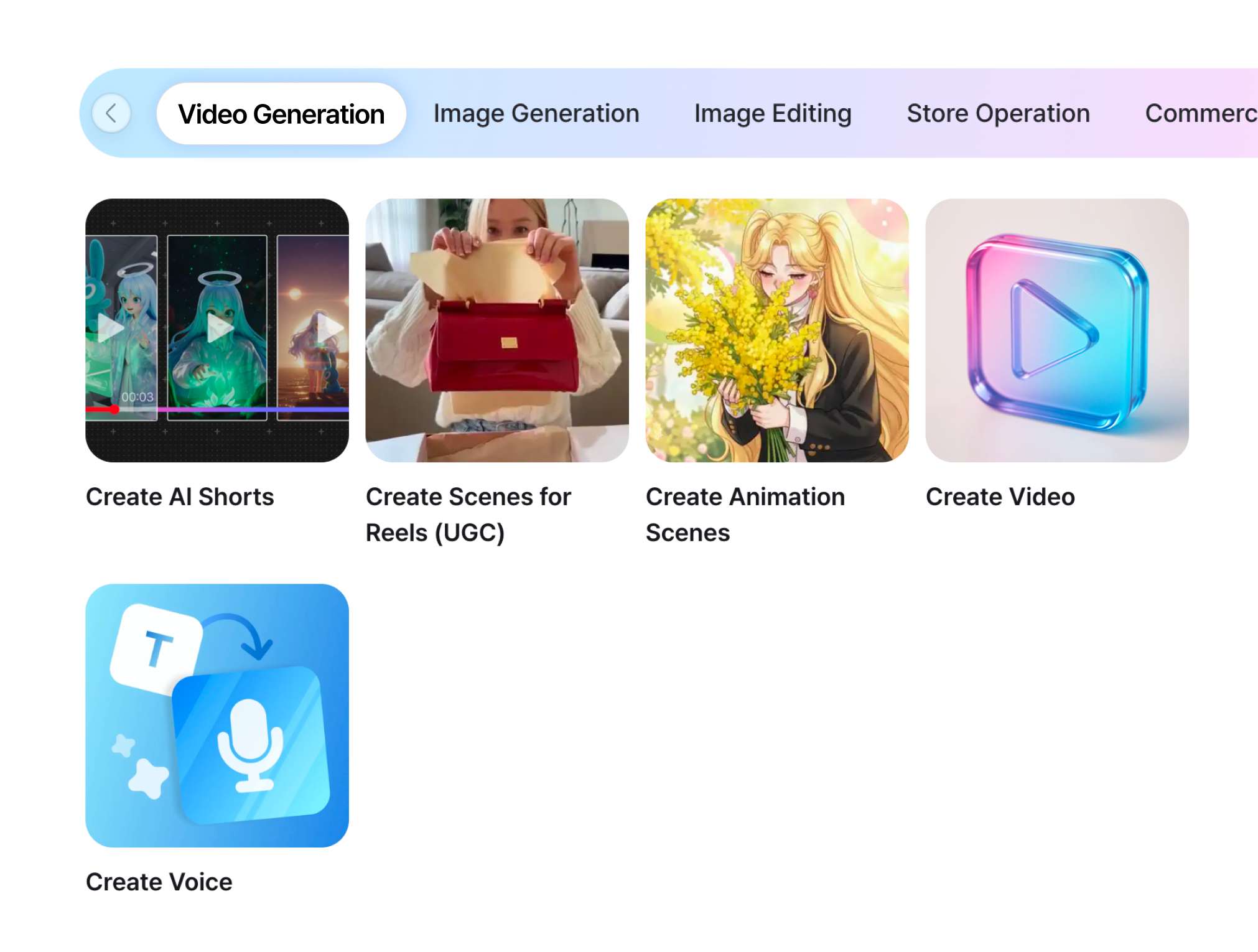
On MiriCanvas, you can choose the AI tool that fits the video you want to make. Use Create Video to turn the scene you have in mind into a short video, or Create AI Shorts to make YouTube Shorts or TikTok videos with multiple scenes from a single-line idea. Want to turn a photo you already have into a video? Learn how on the image to video page.
MiriCanvas also offers a variety of other AI video tools for specific purposes. Use dedicated tools for product promotion videos and animation scenes, and prepare narration for your video more easily with AI voice.
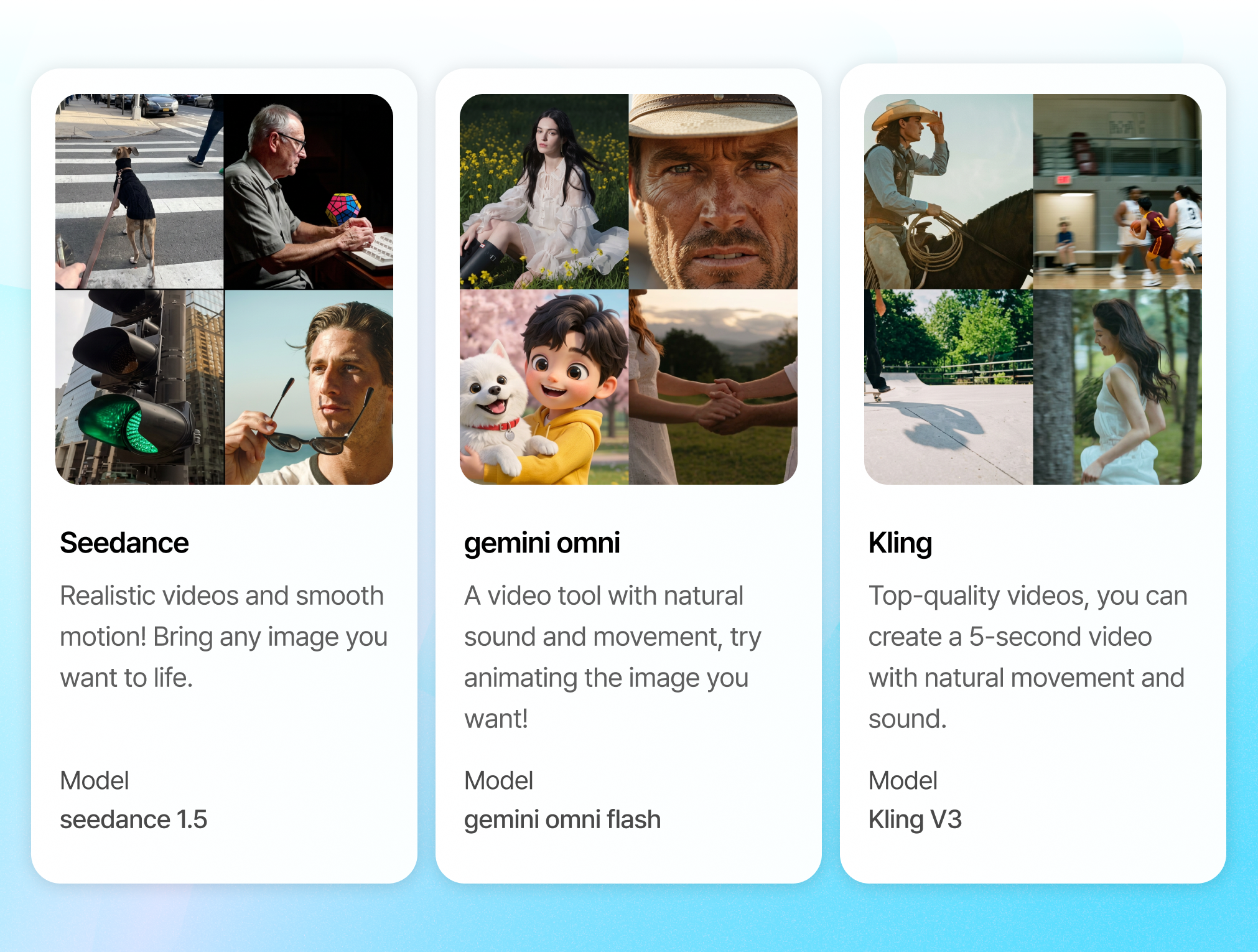
There's no need to sign up for multiple sites in search of a good AI video model, or learn how each one works. MiriCanvas brings together multiple AI video models, including PixVerse, Kling, Seedance, and Gemini Omni, in one place. Choose the style you want, and the model that fits it is applied automatically, so you can easily create videos with the mood you want even if you don't know much about AI models.
Want to create a video with sound? Choose the model you want from Seedance, Gemini Omni, and Kling in Create Video with Sound. Upload an image, and you can create a video with both motion and sound.
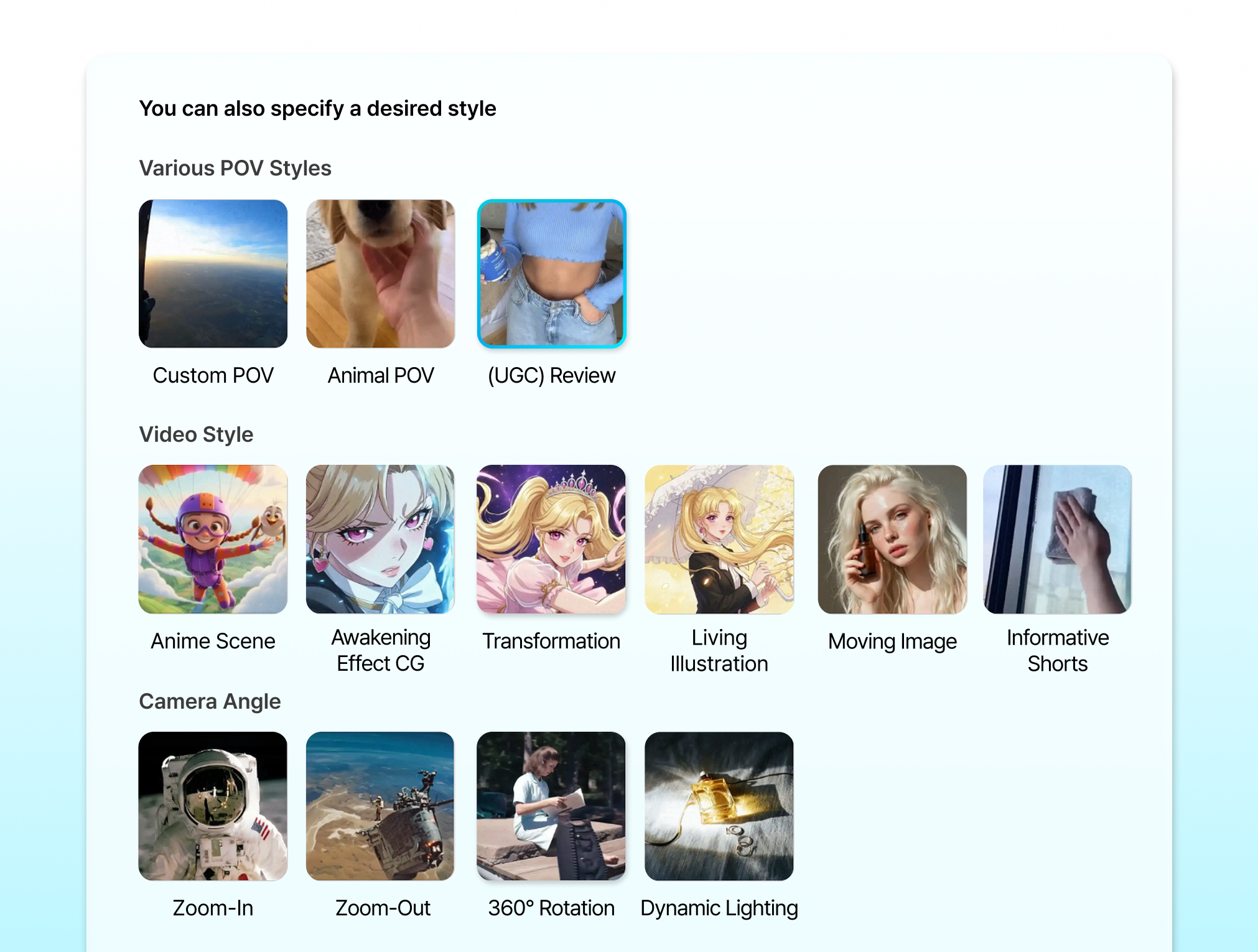
Not sure what prompt to write? On MiriCanvas, choose the style you want in one click, and a description with camera movement and scene mood is ready for you. You can create a video close to what you imagined without writing a prompt from scratch.
Want to make your product stand out? Choose a 360-degree spin or a slow camera push-in. Need a sense of being on the scene? Pick a first-person view that looks like you filmed it yourself. Want to bring your own drawings to life? Try a style that makes illustrations move, or capture adorable moments from your pet's point of view with the animal POV style.
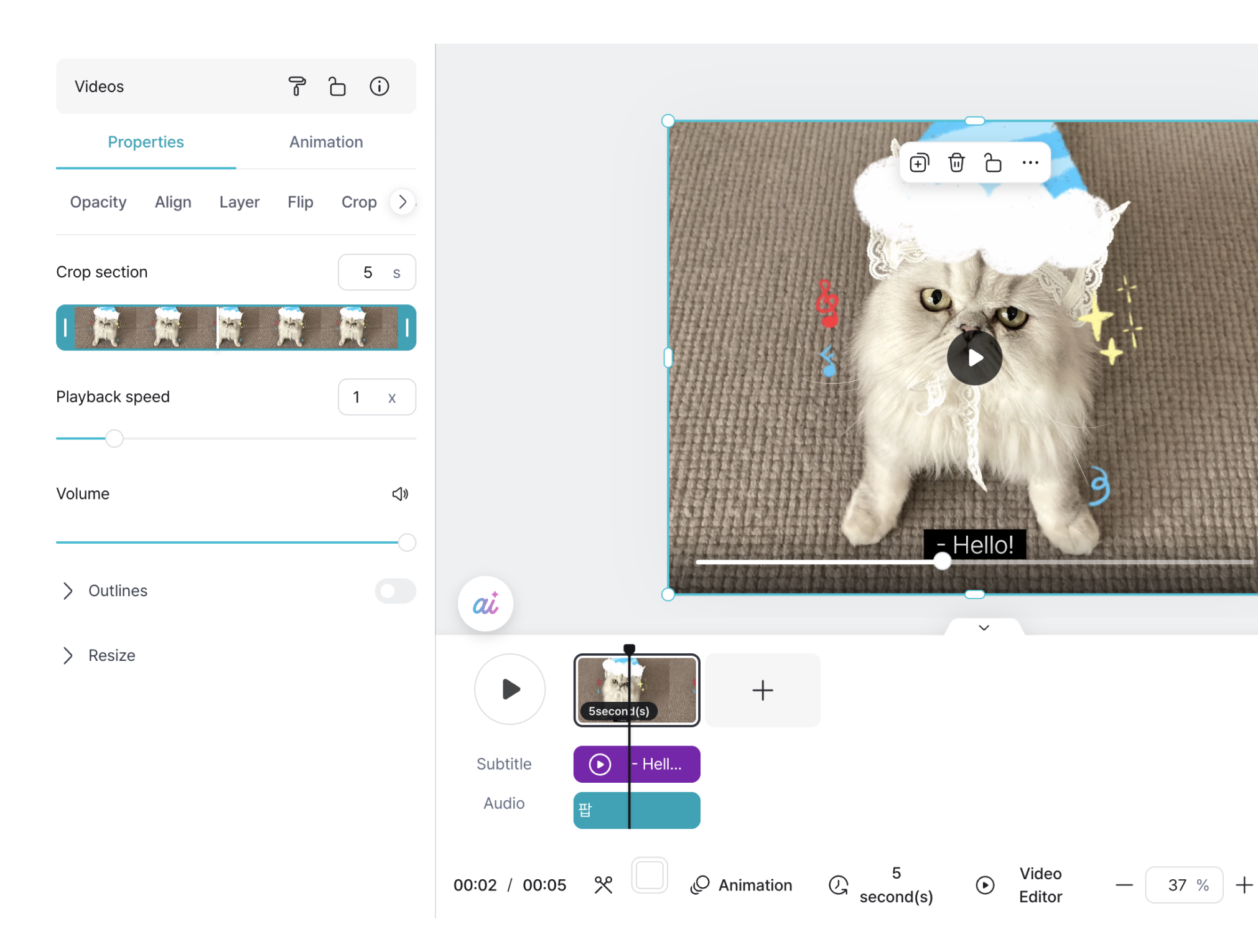
Polish your finished video right away in the MiriCanvas editor. There's no need to look for separate editing software to add subtitles or background music. Upload the downloaded video to the editor, add subtitles and music, and turn it into a video that's ready to use.
Join multiple scenes into one video, cut only the parts you need, and adjust playback speed and volume. Add MiriCanvas templates and elements to quickly create content for wherever you need it, like social media posts, product detail pages, and presentations.
New to MiriCanvas? Try Pro features free for one month with a free Pro trial. You can sign up for the free trial after adding a payment method. See the Help Center for details.
During your free Pro trial, you get 1,000 credits every day. Download the videos you like as MP4s or GIFs with no limit, and decorate them with premium templates and elements to create content that's ready to use. Start your free trial now and create your first AI video.

MiriCanvas has safeguards in place so everyone can create AI videos safely. Before a video is created, the text you enter and the images you upload are reviewed in multiple stages. Requests that could lead to sexual or violent content, or content that infringes on the rights of others, are not turned into videos. You can find the detailed criteria in the MiriCanvas AI Tools Terms.
When using images that contain other people's faces or works, be sure to check portrait rights and copyright. If you use an AI video somewhere people might mistake it for something made by a person, let them know it was made with AI. If you come across inappropriate results, let us know by submitting a request through the Help Center.